
Your Music Library
Once you have added Watch Folders and they have been scanned, you can browse your entire library from the web console. The library is split across four views: Songs, Albums, Artists, and Genres.
Dashboard Summary
The main dashboard shows high-level counts across your library:
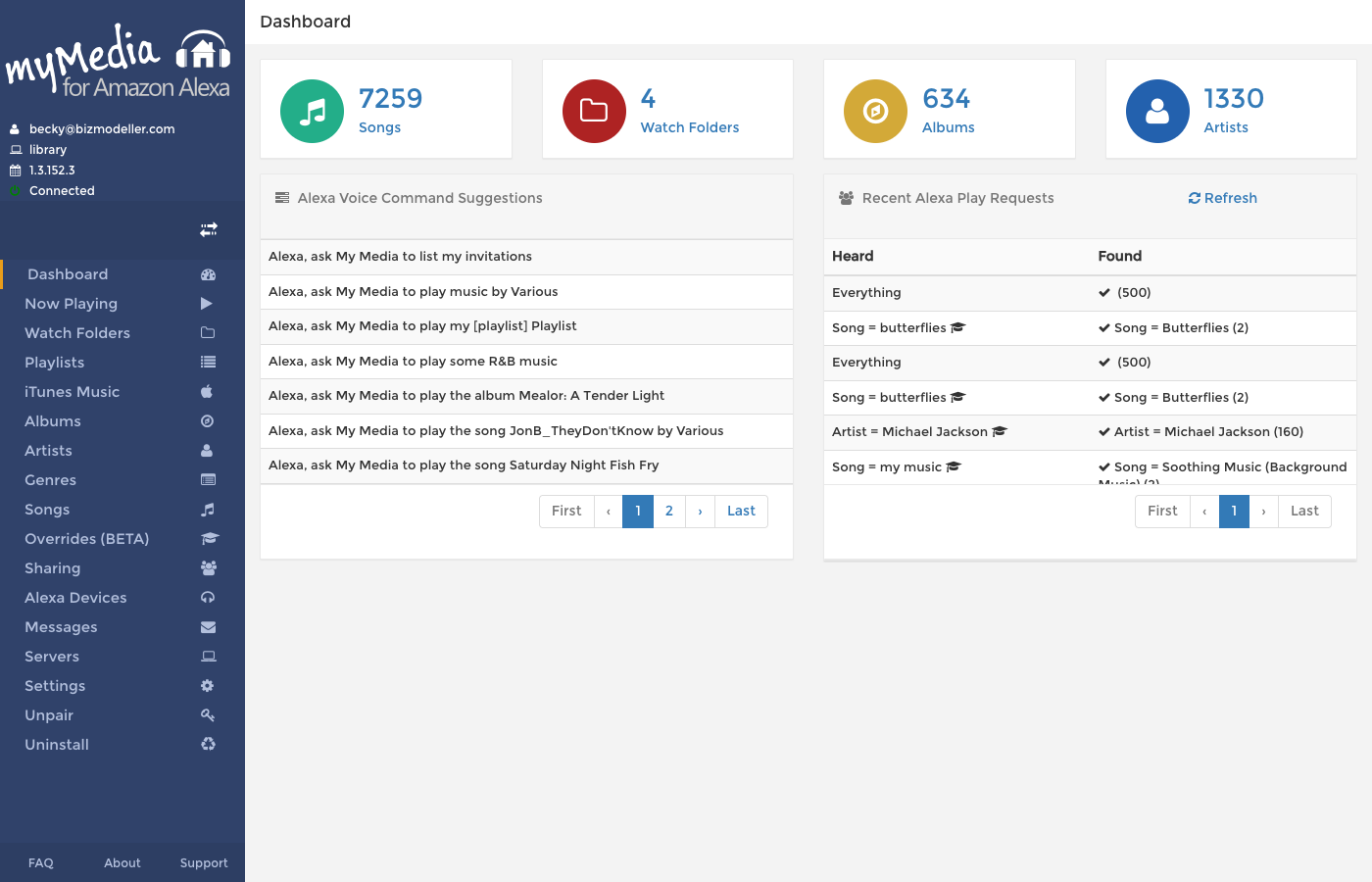
| Tile | What It Shows |
|---|---|
| Songs | Total number of indexed tracks |
| Watch Folders | Number of configured Watch Folders |
| Albums | Number of distinct album titles |
| Artists | Number of distinct contributing artists |
The dashboard also shows:
- Alexa Voice Command Suggestions — a list of voice commands made from actual album/artist/genre names in your library, ready to copy and try
- Recent Alexa Play Requests — a history of recent requests made through Alexa to help you tune your library
Songs
Navigate to Songs to browse all indexed tracks.
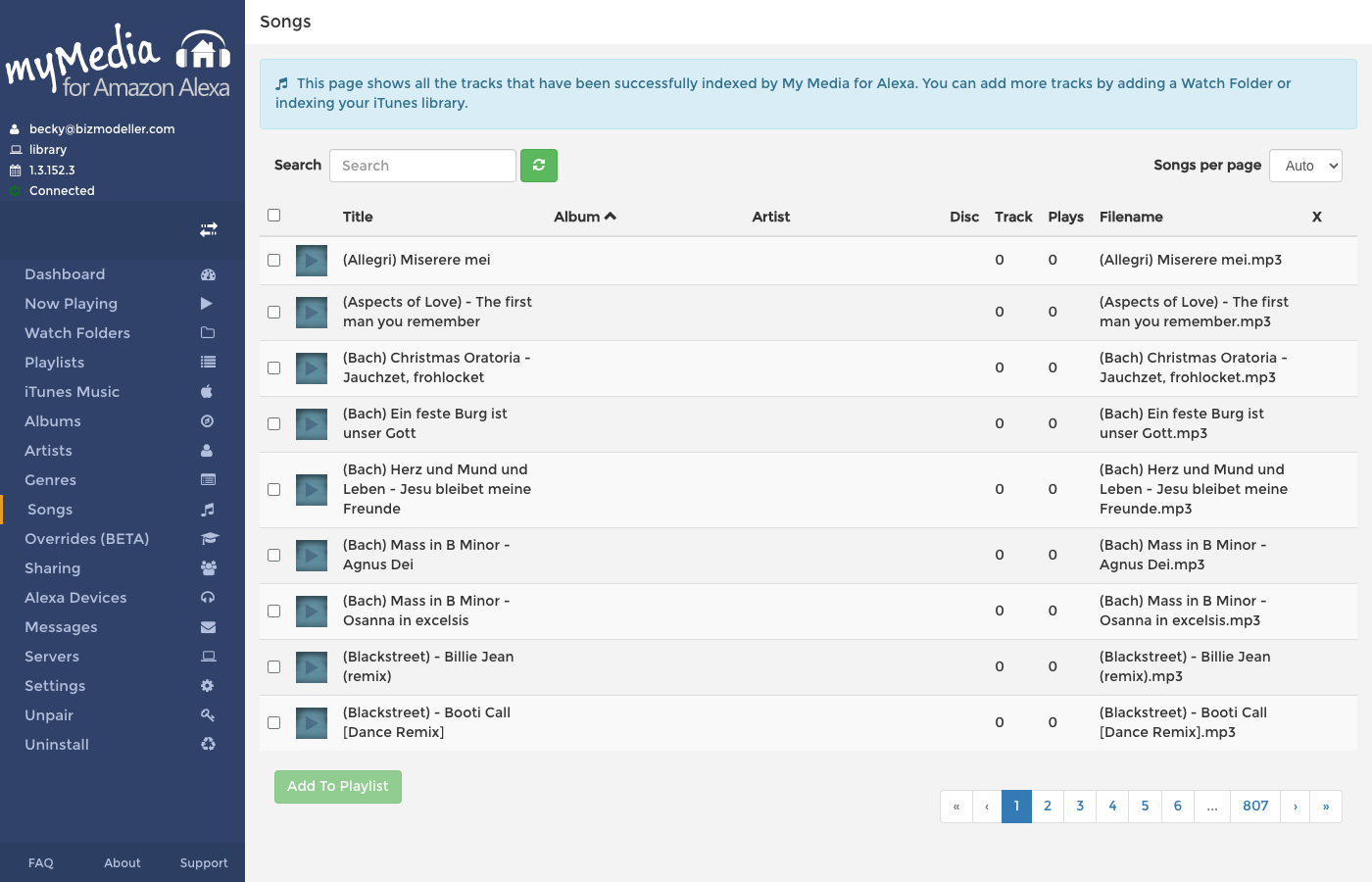
The songs list is paginated and supports searching. Columns shown include:
- Track title
- Contributing artist
- Album
- Genre
- Duration
- File location
You can search the track list using the search box. Results update as you type.
Albums
Navigate to Albums to see a grouped view of your library by album.
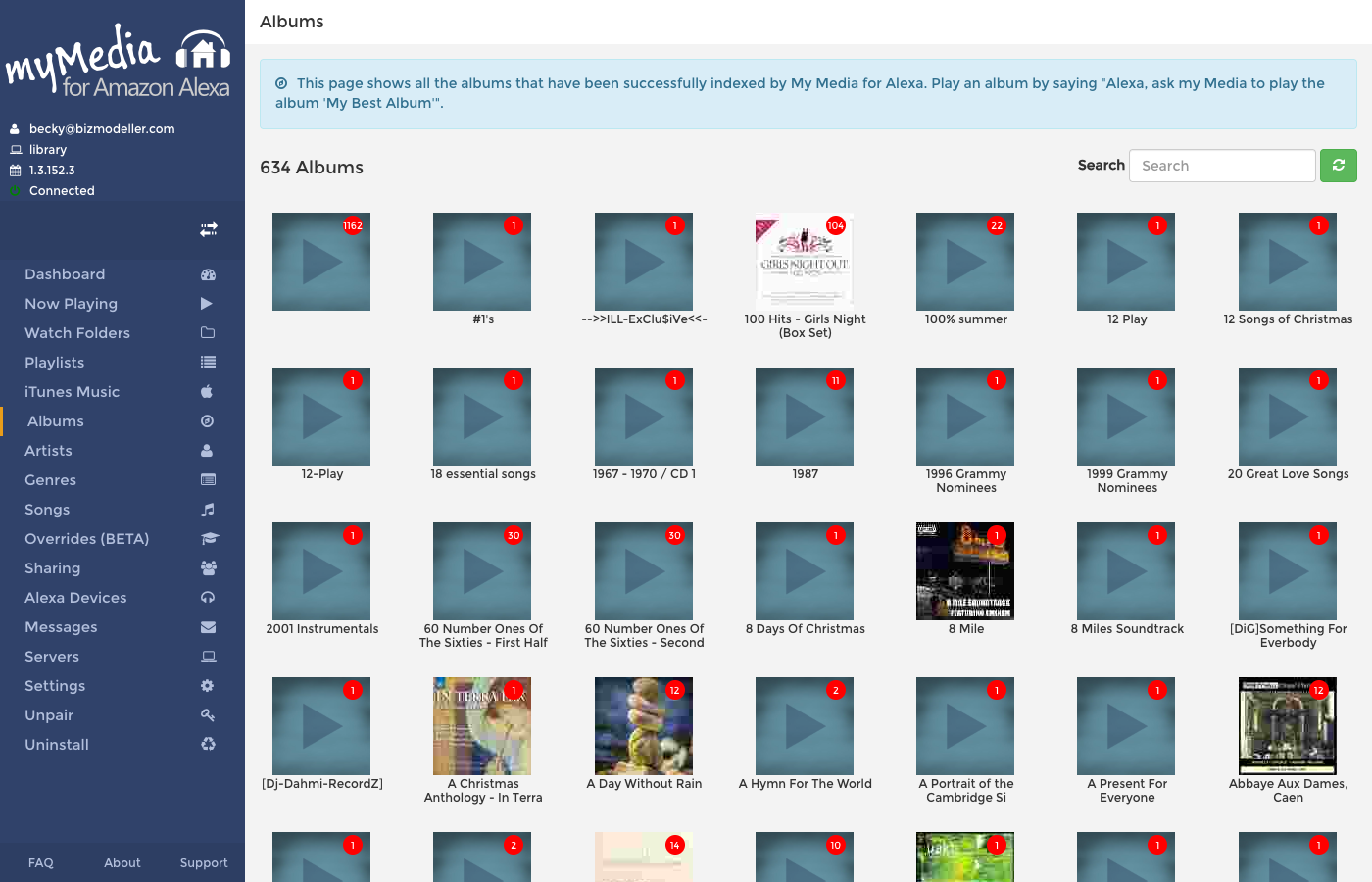
Each album entry shows the album name, primary artist, and track count. Clicking an album opens the track listing for that album.
Artists
Navigate to Artists to browse by contributing artist.
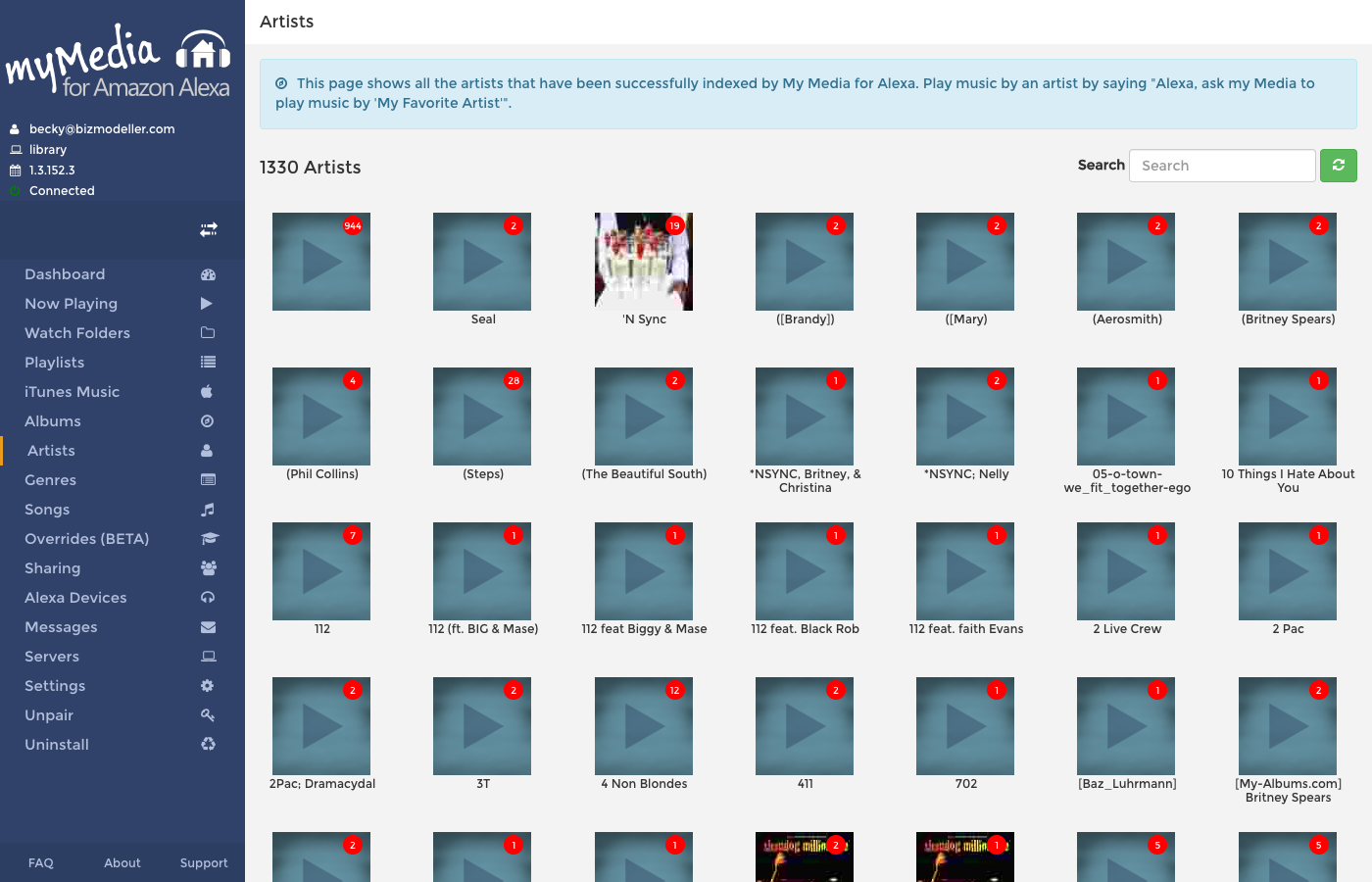
Each artist row shows the total number of tracks indexed for that artist. Clicking an artist filters the song view to that artist's tracks.
Genres
Navigate to Genres to browse by genre tag.
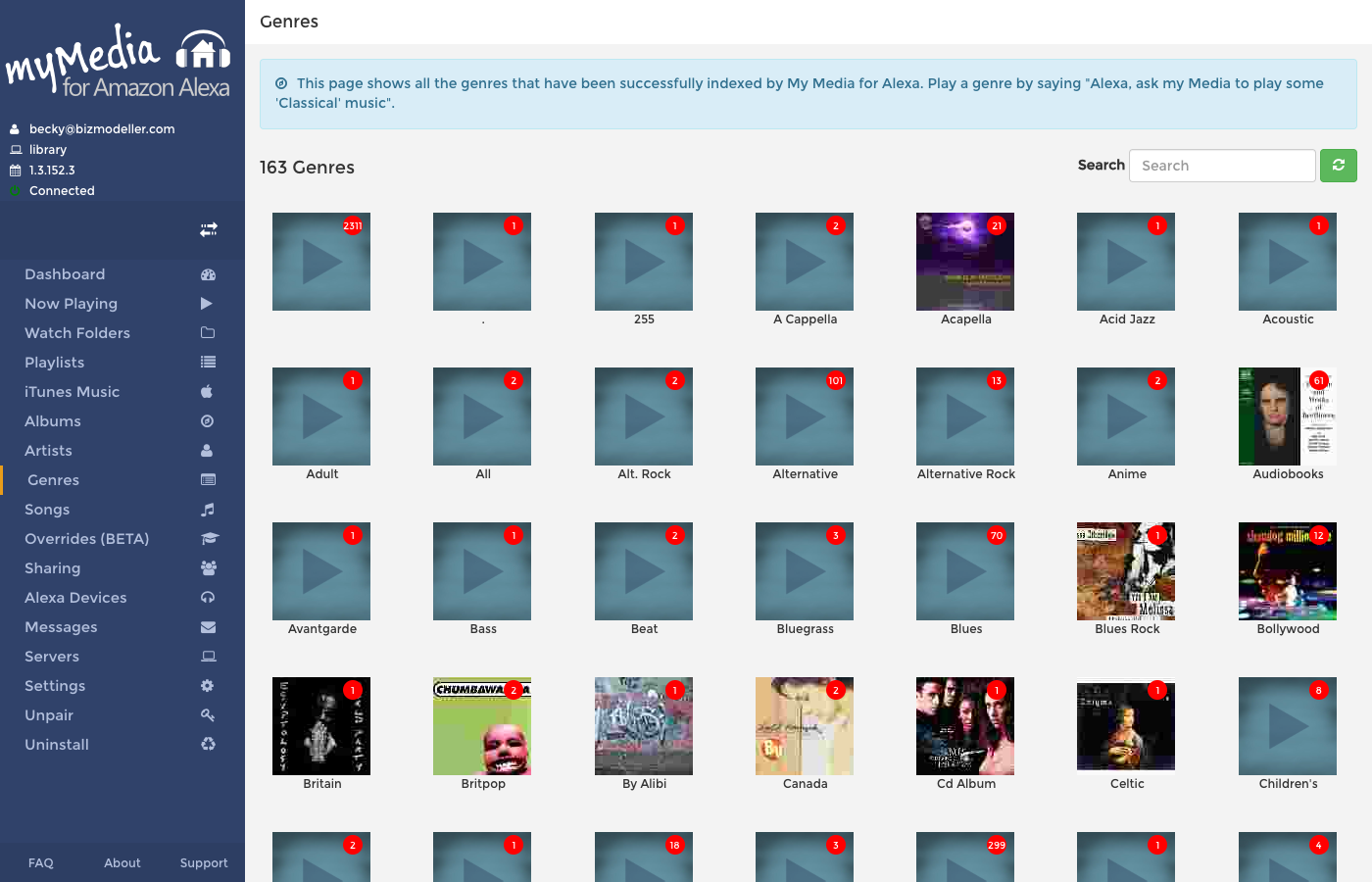
Genres are derived from the ID3 genre tag embedded in each audio file. If your files have no genre tags, the genres list will be empty. You can populate genre tags using a tag editor (e.g., MusicBrainz Picard, MP3Tag).
Searching and Filtering
All library views (songs, albums, artists, genres) support a text search box at the top of the list. The search is performed against the indexed data and returns results instantly.
How My Media Indexes Your Files
My Media reads the following metadata from each audio file's ID3/metadata tags:
| Field | Used For |
|---|---|
| Title | Song name (voice search) |
| Contributing Artist / TPE1 | Artist voice search |
| Album | Album voice search |
| Album Artist / TPE2 | Alternative artist grouping |
| Genre | Genre voice search |
| Track Number | Playback order within an album |
| Disc Number | Multi-disc album ordering |
| Duration | Display and streaming |
| Embedded artwork | Display on Echo Show/Spot |
If a file has no title tag, My Media uses the filename (without extension) as the title. If it has no artist tag, My Media will mark it with a blank artist, which may affect voice search accuracy.
Improve Voice Search
The quality of Alexa's responses depends entirely on your file metadata. Use a tag editor to ensure your files have clean, accurate Title, Artist, Album, and Genre tags before adding them as a Watch Folder.
Supported File Formats
My Media natively plays MP3, AAC (M4A), and ALAC files to Alexa. With Transcoding Support enabled (see Settings), it can also play:
- FLAC
- WMA
- WAV
- OGG Vorbis
- AIF / AIFF
Transcoding requires FFmpeg to be installed or auto-installed via the Settings screen.