
Playlists
My Media supports two types of playlists: imported playlists (from iTunes/Apple Music or M3U files) and query-based playlists (dynamically generated real-time by Alexa voice commands). You can also create custom playlists directly in the web console and add web radio streams.
The Playlists Screen
Navigate to Playlists in the sidebar.
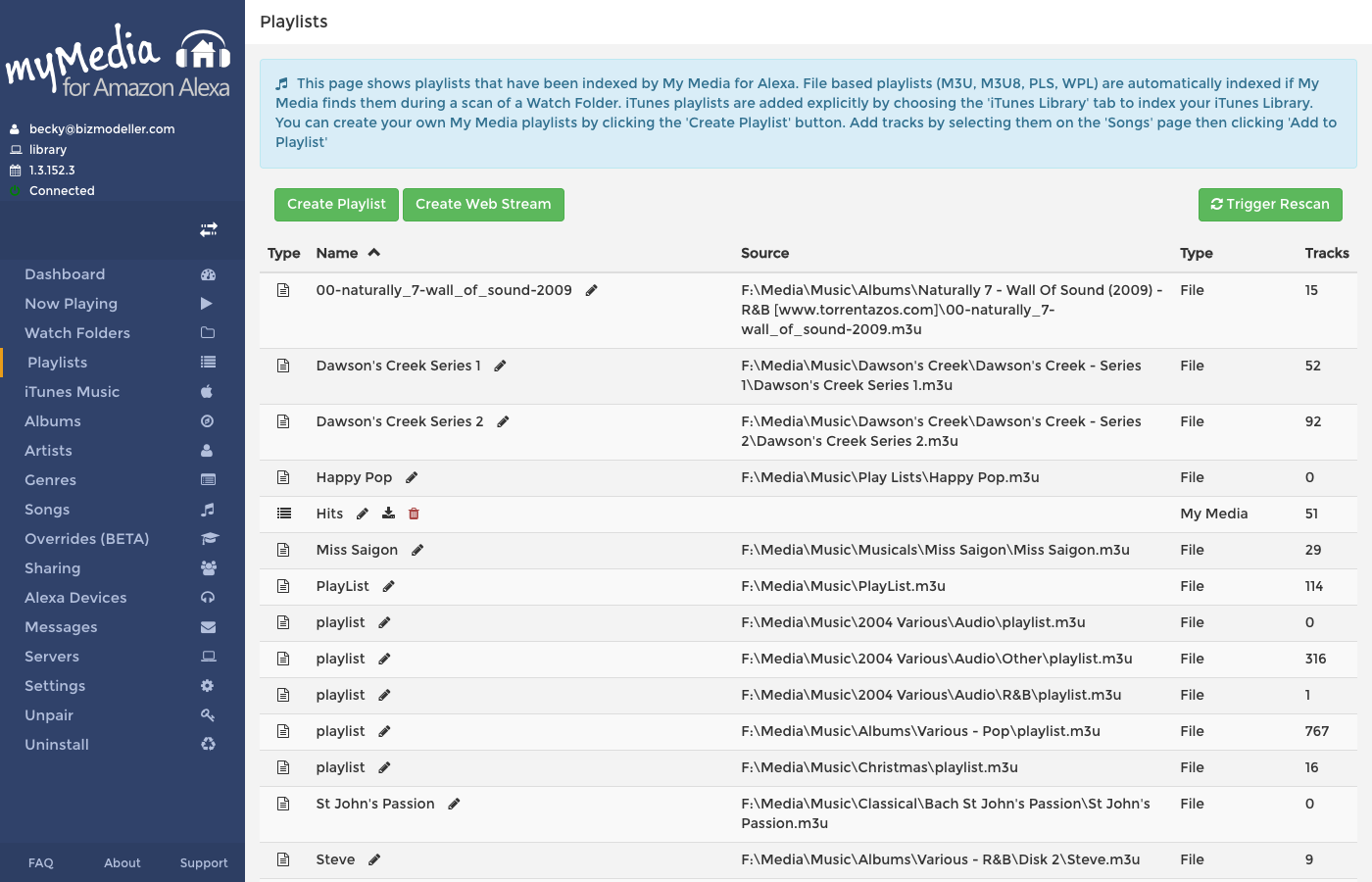
The playlists table shows all your saved playlists with:
| Column | Description |
|---|---|
| Name | Playlist name (what you say to Alexa) |
| Type | Static (fixed track list) or Query-Based (dynamic) |
| Source | Where the playlist came from (iTunes, manual, etc.) |
| Track Count | Number of tracks in the playlist |
| Last Used | When Alexa last played this playlist |
Creating a Playlist Manually
- Click Add Playlist (or New Playlist).
- Enter a name for the playlist. Choose something easy to say to Alexa.
- Click Create.
- The new empty playlist will appear in the list. Click into it to add tracks.
Playlist Name Tips
- Keep names short and distinct — e.g., "Road Trip Mix", "Sunday Morning", "Work Focus"
- Avoid names that sound similar to each other or to artist/album names in your library
- If Alexa mishears the name, use the Overrides feature to create an alias
Adding Tracks to a Playlist
After creating a playlist, click its name to open the detail view. Use the search box to find tracks and add them one by one, or import an entire album or artist.
Deleting a Playlist
Click the trash icon next to a playlist to delete it. This removes the playlist from My Media's index — it does not delete any audio files. Imported playlists (from iTunes) will be re-created on the next iTunes sync.
Adding a Web Stream
My Media can add internet radio streams as single-track playlists. This lets you say "Alexa, ask My Media to play BBC Radio 4" if you create a web stream named "BBC Radio 4".
- Click Add Web Stream in the Playlists screen.
- Enter a name for the stream (this is what you will say to Alexa).
- Enter the stream URL — an HTTP or HTTPS URL pointing to an MP3 or AAC stream.
- Click Add.
Stream Compatibility
The stream URL must be directly accessible by your My Media server (not behind authentication) and Alexa must be able to receive the audio format. MP3 and AAC streams work best.
Playing Playlists with Alexa
Once a playlist exists in My Media, play it by saying:
"Alexa, ask My Media to play [playlist name]"
My Media searches your playlists, watch folder labels, and query terms. If multiple playlists match, the best match is selected based on fuzzy matching.
Shuffle Mode
"Alexa, ask My Media to shuffle [playlist name]"
Or toggle shuffle on after playback starts by saying:
"Alexa, ask My Media to shuffle"
Repeat / Loop
"Alexa, ask My Media to repeat"
"Alexa, ask My Media to loop"
Imported Playlists from iTunes / Apple Music
When you configure an iTunes library (see iTunes / Apple Music), My Media automatically imports all playlists from the iTunes XML library file. These playlists will appear in the Playlists screen with the source marked as iTunes.
Imported playlists are refreshed every time My Media rescans the iTunes library.
Audio Books
Audio books are handled as playlists with the Audio Book type. When Alexa plays an audio book playlist, My Media automatically creates a bookmark at the current position. The next time you ask Alexa to play the same book, it will resume from where you left off.
"Alexa, ask My Media to play [book title]"
To reset the bookmark and start from the beginning:
"Alexa, ask My Media to restart [book title]"
Query-Based / Dynamic Playlists
When you ask Alexa for a song, album, artist or genre that doesn't match a named playlist, My Media builds a temporary query-based playlist on the fly from your library. These are not saved permanently — they are destroyed after playback ends.
Query-based playlists are ordered by album and track number for album queries, and shuffled for genre queries.
Triggering Playlists via Routines
You can also trigger playlists via Alexa Routines. See our dedicated guide on how to configure these with the Alexa App.