
Pairing with Alexa
Pairing links your My Media server to your Amazon account so that the My Media Alexa Skill knows which server to use when you make a request. Without pairing, Alexa cannot find your music.
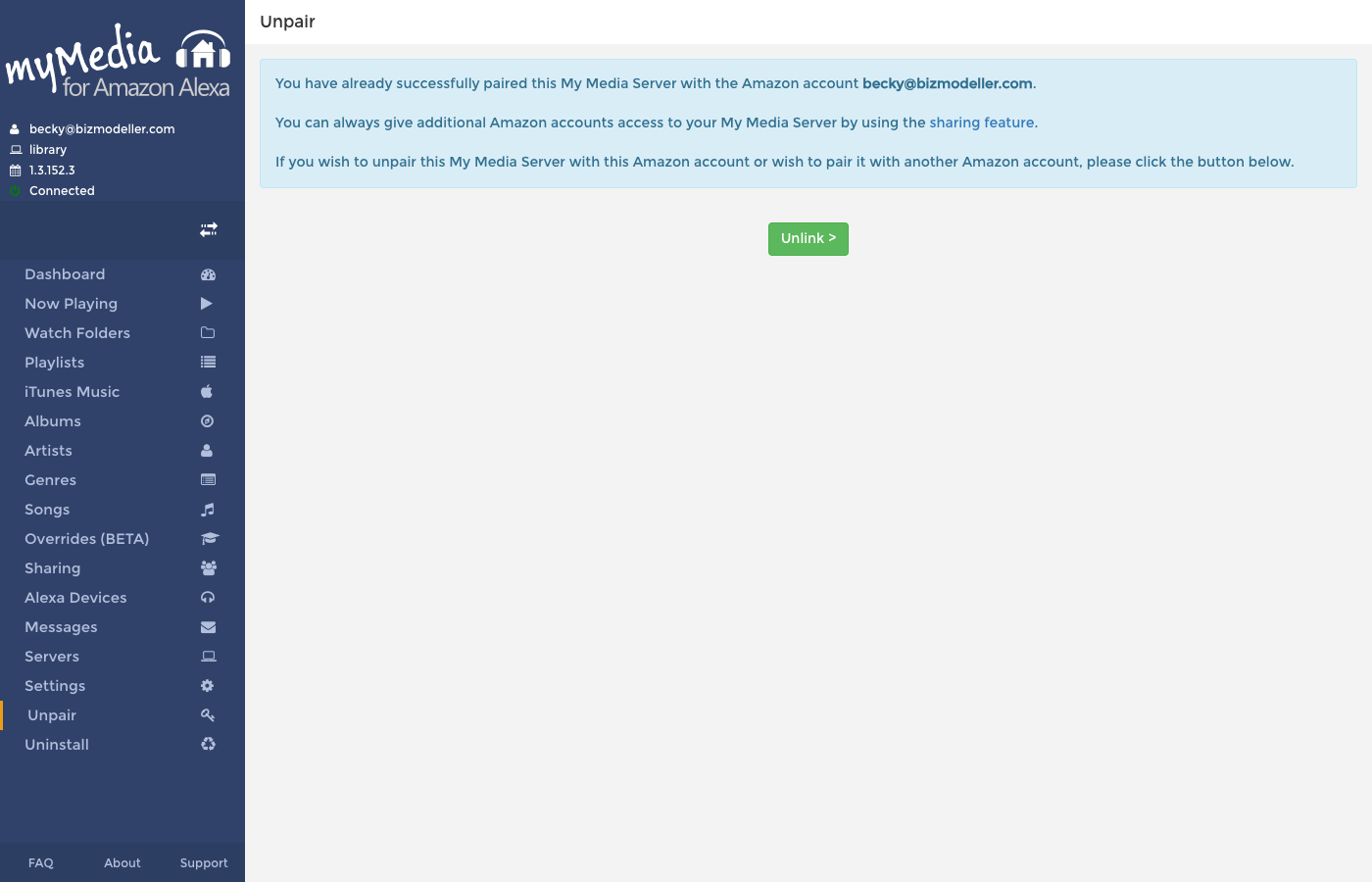
The Pairing Screen
Navigate to Pairing in the sidebar (or go directly to http://your-server:52051/#/pairing).
Pairing for the First Time
- Open the My Media web console and go to the Pairing section.
- Click the link or button to log in with Amazon.
- A browser window will open asking you to sign in to your Amazon account and authorise My Media.
- After authorisation, you will be redirected back to the console and the Pairing page will show your Amazon account email address and a confirmation that the server is paired.
Enable the Skill First
You must have the My Media for Alexa Alexa Skill enabled on your Amazon account before pairing. See Getting Started for instructions.
Confirming a Successful Pairing
Once paired, the Pairing page displays:
You have already successfully paired this My Media Server with the Amazon account your@email.com.
You can also confirm by saying:
"Alexa, open My Media"
Alexa should respond by starting to play music (or say that no music was found if you haven't added Watch Folders yet).
Changing the Paired Account (Unlinking)
If you want to link the server to a different Amazon account, or if something has gone wrong with the pairing:
- Go to the Pairing screen.
- Click the Unlink button.
- The server is now unpaired. You can repeat the pairing steps above with a new Amazon account.
Warning
Unlinking will stop anyone from playing music through this server until it is re-paired. Users who had been given access via Sharing will also lose access.
Sharing with Other Accounts
Only one Amazon account can be the "primary" paired account. To give additional people (e.g., family members) access to your server, use the Sharing feature — there is no need to unlink and re-link.