
Settings
The Settings screen contains all configuration options for My Media for Alexa. Settings are organised into tabs: General, Network, and Mapped Drives (Windows only).
Navigate to Settings in the sidebar.
General Tab
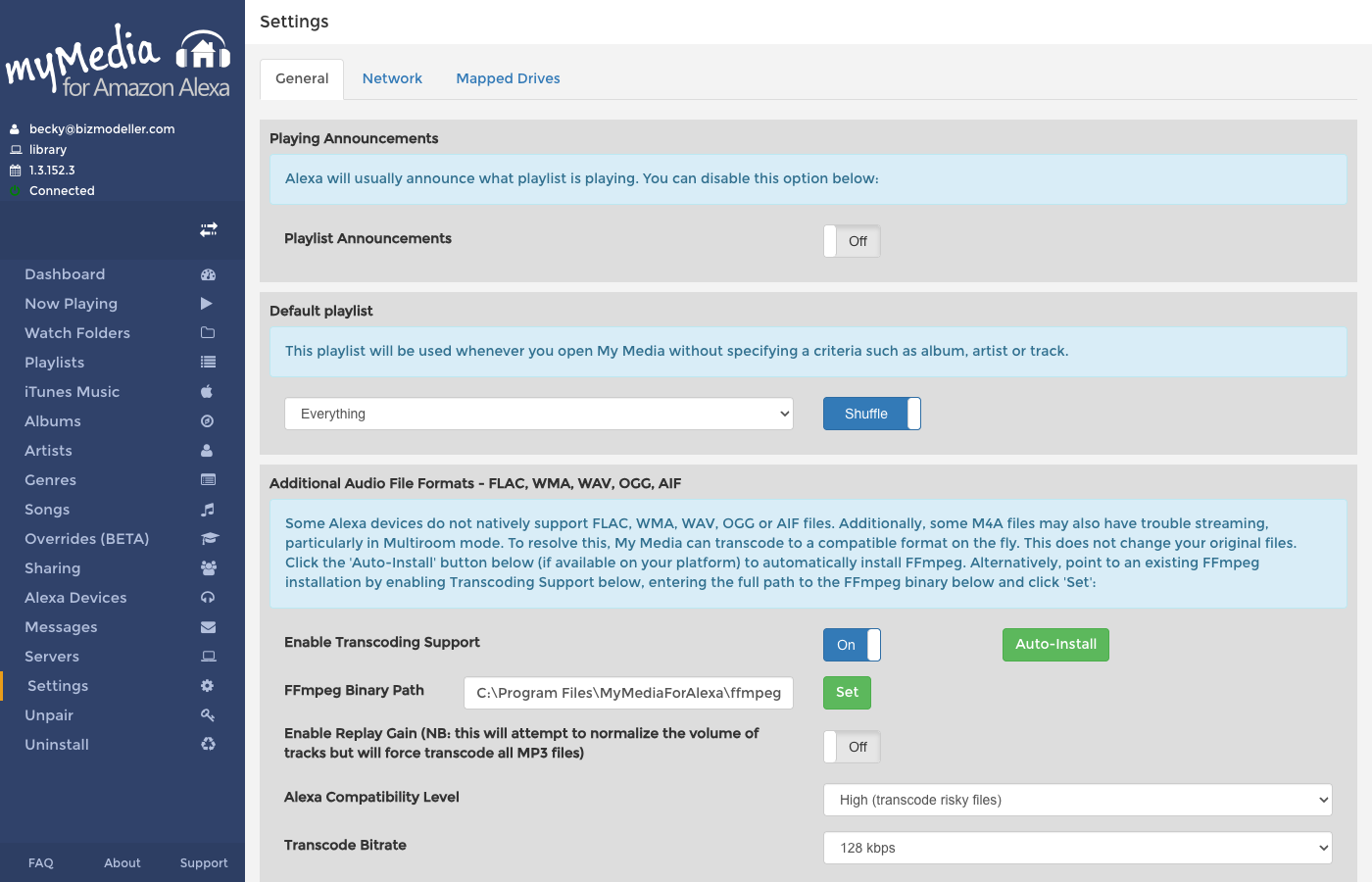
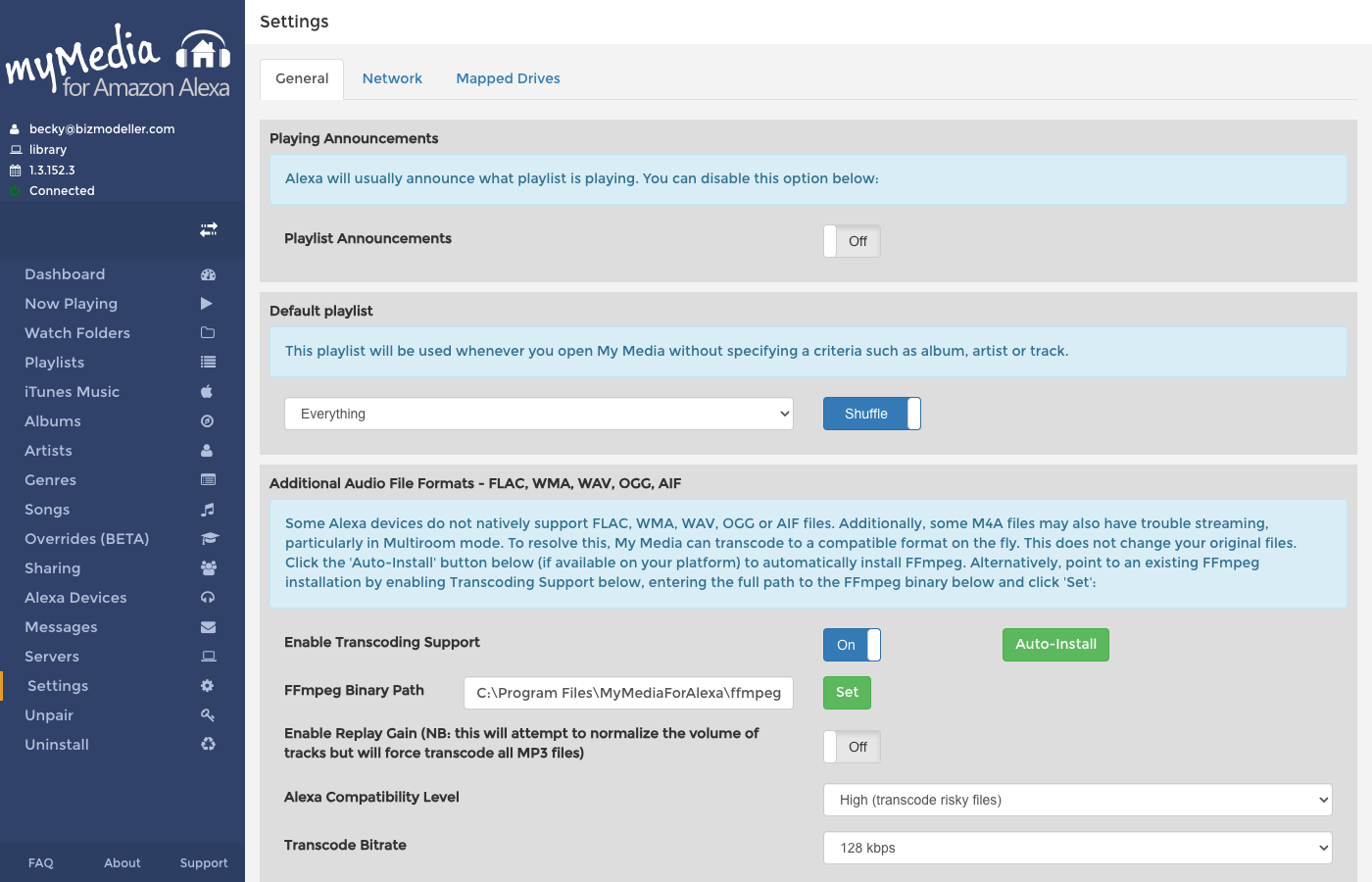
Playing Announcements
Playlist Announcements — When enabled, Alexa announces what playlist is about to play before it starts. Toggle this off if you prefer silent starts.
Default Playlist
When you open My Media without specifying a song, album, artist or genre (e.g., just saying "Alexa, open My Media"), My Media uses the Default Playlist setting to decide what to play.
- Set this to Everything to play a random selection from your entire library
- Set it to a specific named playlist or Watch Folder label to always start with that collection
- Toggle Shuffle next to the dropdown to control whether the default playlist plays in order or shuffled
Additional Audio File Formats — FLAC, WMA, WAV, OGG, AIF
Some Alexa devices cannot natively play FLAC, WMA, WAV, OGG or AIF files. My Media can transcode these formats to MP3 on the fly before streaming them to Alexa. This does not modify your original files.
Enable Transcoding Support
Toggle this on to enable format conversion. Once on, additional options appear:
FFmpeg Binary Path — Enter the full path to the ffmpeg binary (e.g., /usr/bin/ffmpeg or C:\ffmpeg\bin\ffmpeg.exe). Click Set to save.
Auto-Install — On supported platforms, click this button to automatically download and install FFmpeg to the correct location.
Alexa Compatibility Level
Controls which files are transcoded:
| Level | Behaviour |
|---|---|
| High | Transcodes all files that might cause issues (FLAC, WMA, WAV, OGG, AIF, and risky M4A) |
| Medium | Transcodes only high-risk files (FLAC, WMA, WAV, OGG, AIF) |
| Low | No transcoding — only native formats are streamed |
Start with High if you are having playback problems.
Enable Replay Gain
When enabled, My Media attempts to normalise the volume of tracks using Replay Gain metadata. Note: this forces all MP3 files to be transcoded, which increases CPU usage.
Transcode Bitrate
Select the output bitrate for transcoded files (96–384 kbps). Higher bitrates give better audio quality but use more bandwidth. 128 kbps or 192 kbps is recommended for typical use.
Alexa Artwork and Metadata
Send Album Artwork to Alexa for Echo Show / Spot — When enabled, My Media sends the cover art embedded in audio files to compatible Alexa devices for display. This requires the devices to be Echo Show or Echo Spot models.
Send Track Metadata to Alexa to improve detection — When enabled, My Media sends track title, artist and album information back to Amazon to help the Alexa service better understand what is playing.
Watch Folder Scanning
Enable Watch Folder Autoscan — Toggle off to disable automatic background rescanning. Manual rescans can still be triggered from the Watch Folders screen.
Automatically Unindex Removed / Inaccessible Files — When enabled, My Media removes tracks from its index if the file is no longer accessible (deleted, drive unmounted, etc.).
Automatically Import Playlists — When enabled, My Media automatically imports playlists from iTunes/Apple Music XML files during each scan.
Watch Folder Scan Interval — The number of hours between automatic rescans. Default is 24 hours.
Ignore Folders Containing — Comma-separated list of folder name fragments to skip during scanning (e.g., _ignore, temp, .Spotlight). Useful for excluding internal macOS or system folders from indexing.
Clear Metadata and Artwork Cache — Click Clear Cache to delete all cached album artwork and metadata. My Media will re-fetch artwork from your files on the next scan.
Clear My Media Database — Click Clear All to wipe the entire search index and start fresh. Use this if you are seeing stale or corrupt data. All Watch Folders will be rescanned afterwards.
Logging
Enable Logging — Toggle on to write detailed log files. These are essential for diagnosing problems. On devices with limited storage (e.g., Raspberry Pi), you may want to disable logging to reduce flash write cycles.
Log files can be downloaded from the Support screen.
Webhook
My Media can POST a JSON notification to an external URL whenever key playback events occur (playlist started, track started, track paused, track stopped, track failed). Leave this blank to disable.
Enter a full http:// or https:// URL and click Set. See Webhook Integration for the full payload reference and integration examples.
Network Tab
Admin Account Password
Require password for My Media web console — Toggle on to password-protect the web console. The username is always admin. Enter and confirm a password, then click Set.
Warning
If you forget the admin password, you will need to reset it by editing the configuration file directly.
Listening IP Address
Displays the IP address that My Media is advertising to Alexa. This must be reachable from your Alexa device on your local network.
If your server has multiple network adapters and My Media has selected the wrong IP, click Set to override it with the correct local IP address.
Docker Users
If running My Media in Docker, set this to the host machine IP (not the container IP). The container IP is not accessible from Alexa devices on your local network.
Media Server Label
A friendly name for your server. This is what Alexa announces when you say "Alexa, ask My Media to switch servers". Defaults to your computer name. Change it to something meaningful like "Living Room Server" or "Home NAS".
Enable Access Outside of Local Network
Controls whether Alexa devices that are not on the same local network as your server can play music.
| Option | How It Works |
|---|---|
| Off | Only works when Alexa is on the same network as the server |
| Enable via Firewall NAT | You must forward port TCP/52050 on your router to the server's IP. Audio streams directly from your server to Alexa. |
| Enable via Push | Audio is relayed through MyMedia's cloud servers. No port forwarding needed, but audio briefly passes through external servers. |
Bypass Proxy
Enable this if your network uses an outbound proxy and you want My Media to bypass it for direct connections.
Mapped Drives Tab (Windows only)
On Windows, if you are accessing music on network shares that require authentication (username/password), you can configure mapped drive credentials here. My Media will use these credentials when accessing the share.
Click Add Network Drive and enter:
- UNC Path — e.g.
\\server\music - Username and Password for the share
This is needed because the My Media Windows Service runs as a system account and cannot use your personal Windows credential cache.