
Devices
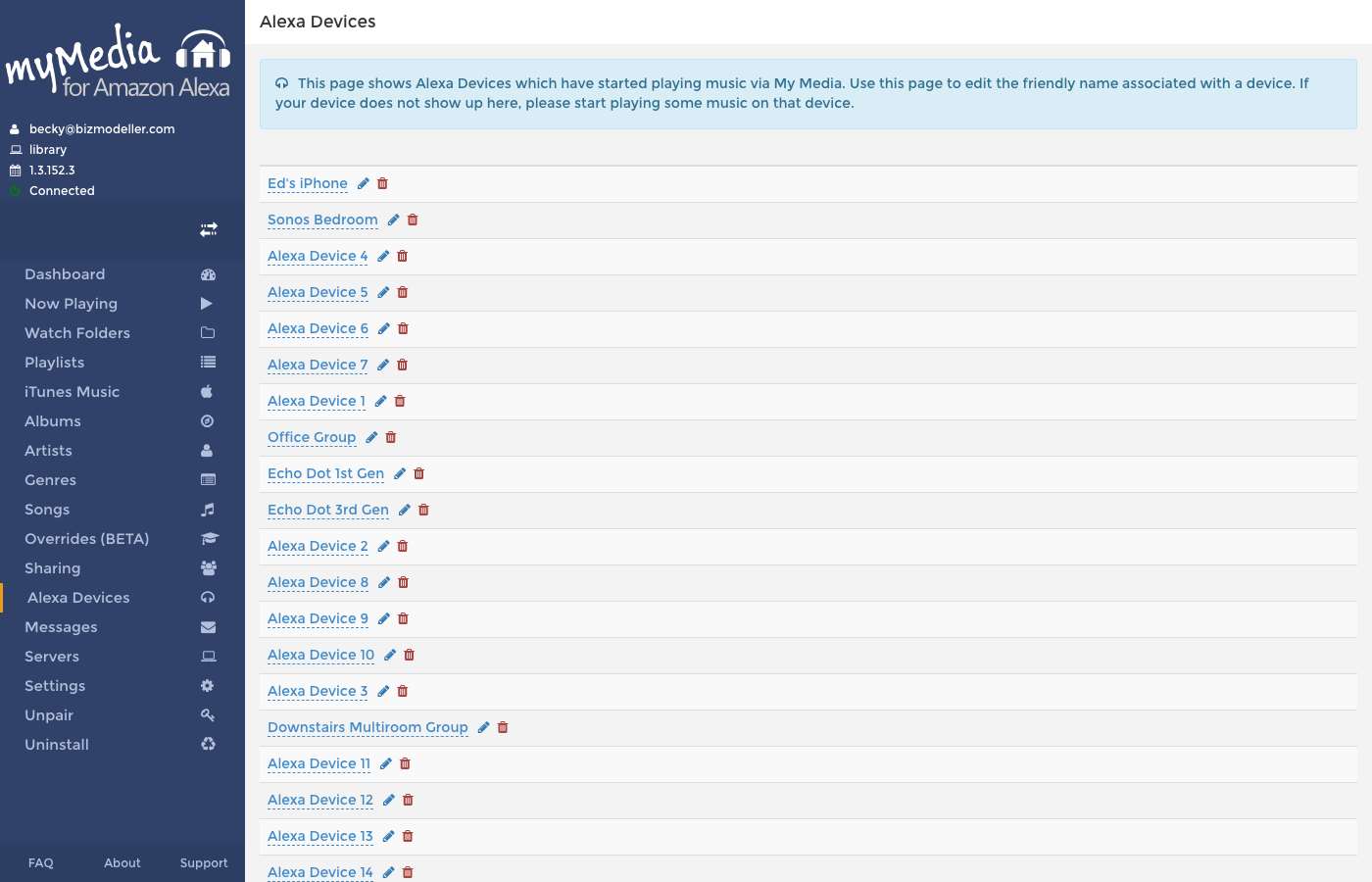
The Devices page lists all Alexa devices that have streamed music from your My Media server. My Media tracks devices automatically the first time they play media.
Tips
If your device doesn't appear here yet, start playing some music on that device first. It will register itself during playback.
Device List
Each row shows the friendly name associated with a device. The default name is the internal device identifier assigned by Amazon.
Renaming a Device
You can assign a human-readable name to any device:
- Click the pencil icon next to the device name, or click directly on the name.
- Type the new friendly name in the edit field that appears.
- Press Enter or click away to save.
This name is for display purposes within the My Media web console only — it does not affect how the device is referenced by Alexa.
Forgetting a Device
To remove a device from the list, click the red trash icon next to it. This removes the device record from My Media. The device can re-register itself automatically the next time it plays media.