
Getting Started
This chapter walks you through installing My Media for Alexa and completing the initial setup wizard. By the end you will have a running server that is paired with your Amazon account and ready to index your music.
System Requirements
| Platform | Requirement |
|---|---|
| Windows | Windows 7 or later (64-bit recommended), .NET Framework 4.6+ |
| macOS | macOS 10.9 (Mavericks) or later |
| Linux | Ubuntu 16.04+ or any distribution supporting Mono 5.x |
| NAS | QNAP (x86/ARM) or Synology DSM 6+ |
| Network | The server must be reachable from the internet on the port My Media advertises (the service handles this via the My Media relay) |
Downloading and Installing
- Visit www.mymediaalexa.com and download the installer for your platform.
- Run the installer and follow the prompts. My Media installs as a background service that starts automatically with your computer.
- Once installation completes, your browser will automatically open the My Media Web Console at
http://localhost:52051.
Tips
If the console does not open automatically, navigate to http://localhost:52051 in any browser.
First Run — The Setup Wizard
The first time you open the console you will be shown the Setup screen:
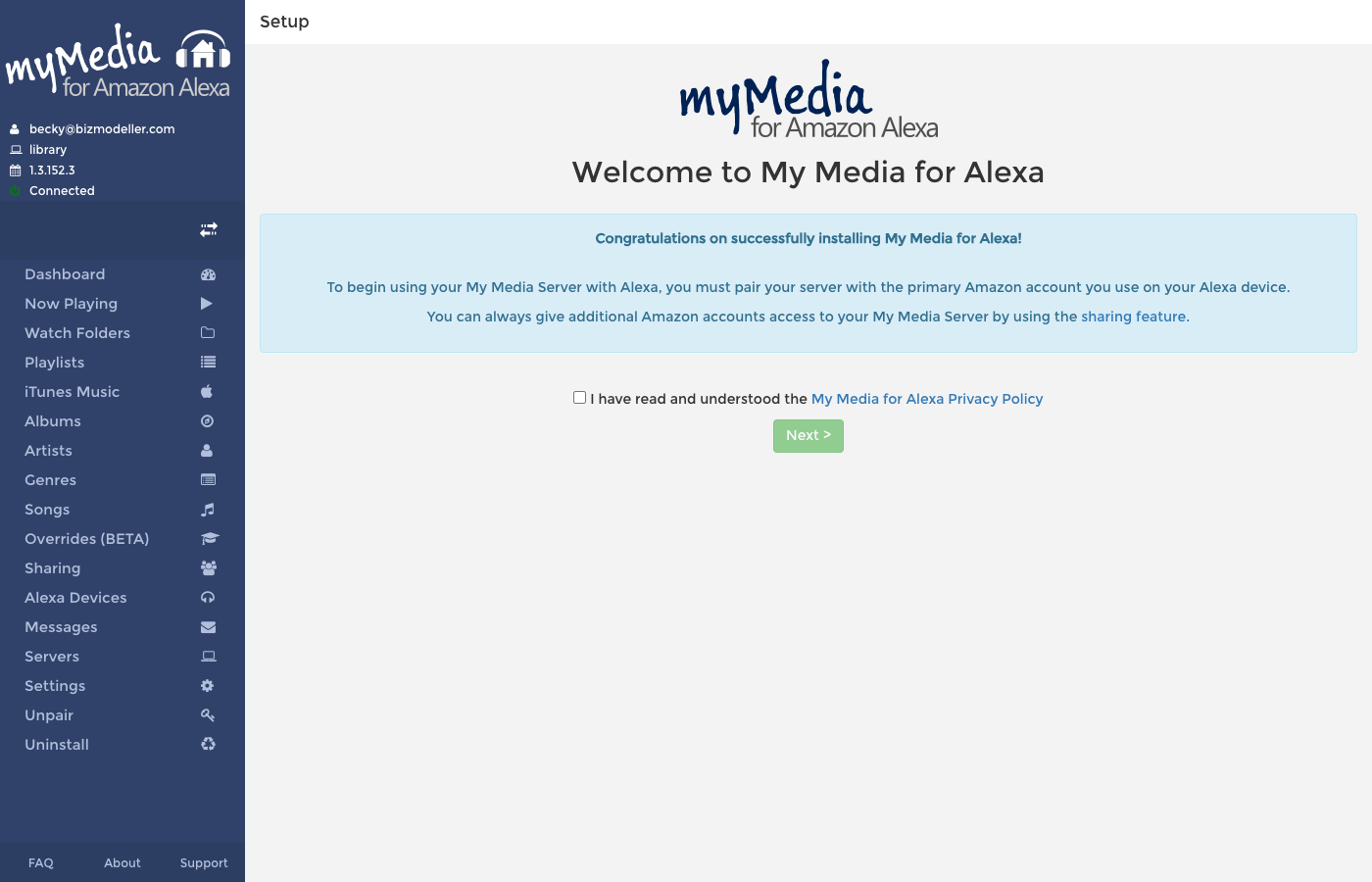
Step 1 — Accept the Privacy Policy
Read the My Media for Alexa Privacy Policy and tick the checkbox to confirm you have read and understood it. Click Next > to continue.
Step 2 — Enable the Alexa Skill
Before pairing, you must enable the My Media for Alexa skill on your Amazon account:
- Open the Amazon Alexa app on your phone or go to alexa.amazon.com.
- Go to Skills & Games and search for My Media.
- Select My Media for Alexa and click Enable.
Step 3 — Pair with Amazon
After enabling the skill, return to the Web Console and proceed to Pairing to link your Amazon account to this server.
Starting and Stopping the Service
Windows
My Media runs as a Windows Service named My Media for Alexa. You can manage it from Services (services.msc) or from the system tray icon (if installed with the tray option).
macOS
My Media runs as a Launch Agent. Use the menu bar icon to start/stop the service, or use:
launchctl load ~/Library/LaunchAgents/com.mymedia.agent.plist
launchctl unload ~/Library/LaunchAgents/com.mymedia.agent.plist
Linux
My Media runs as a systemd service:
sudo systemctl start mymedia
sudo systemctl stop mymedia
sudo systemctl status mymedia
Opening the Web Console
Open any browser and navigate to http://localhost:52051 (replace localhost with the IP address of your server if accessing from another device on your network).
The default port is 52051. If you have changed this in settings, adjust accordingly.
Firewall
If you are accessing the console from another machine, ensure port 52051 is open in your firewall for TCP traffic from your local network.
