
Watch Folders
Watch Folders are the heart of My Media. They are directories on your server that contain your music files. My Media monitors each Watch Folder and indexes every audio file it finds, making your music searchable by Alexa.
The Watch Folders Screen
Navigate to Watch Folders in the sidebar.
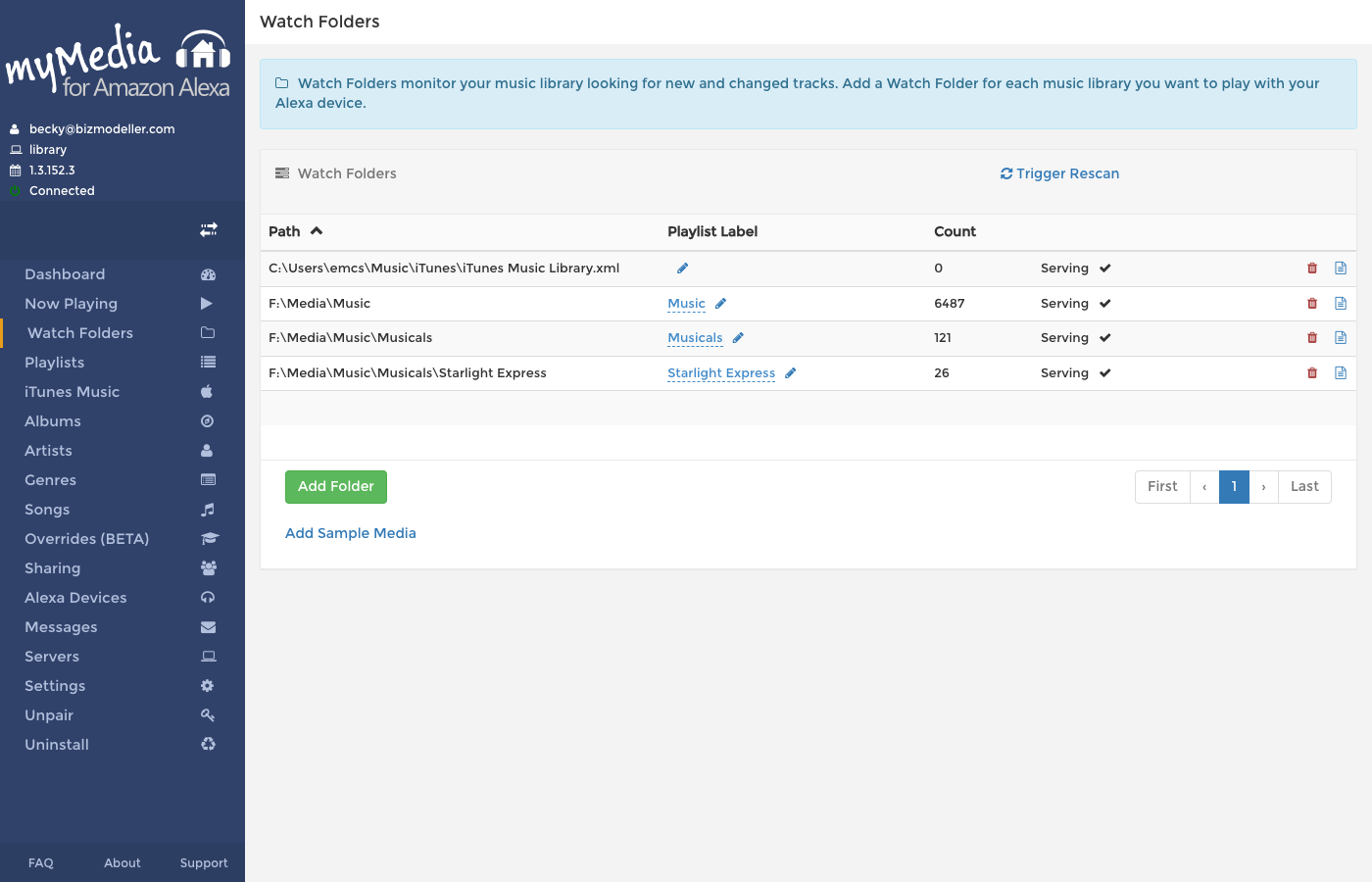
The table shows all configured Watch Folders with:
| Column | Description |
|---|---|
| Path | The full filesystem path being monitored |
| Playlist Label | An optional friendly name you can use as a playlist in Alexa voice commands |
| Count | Number of indexed tracks in this folder |
| Status | Current state of the folder (Idle, Scanning, Error, etc.) |
Adding a Watch Folder
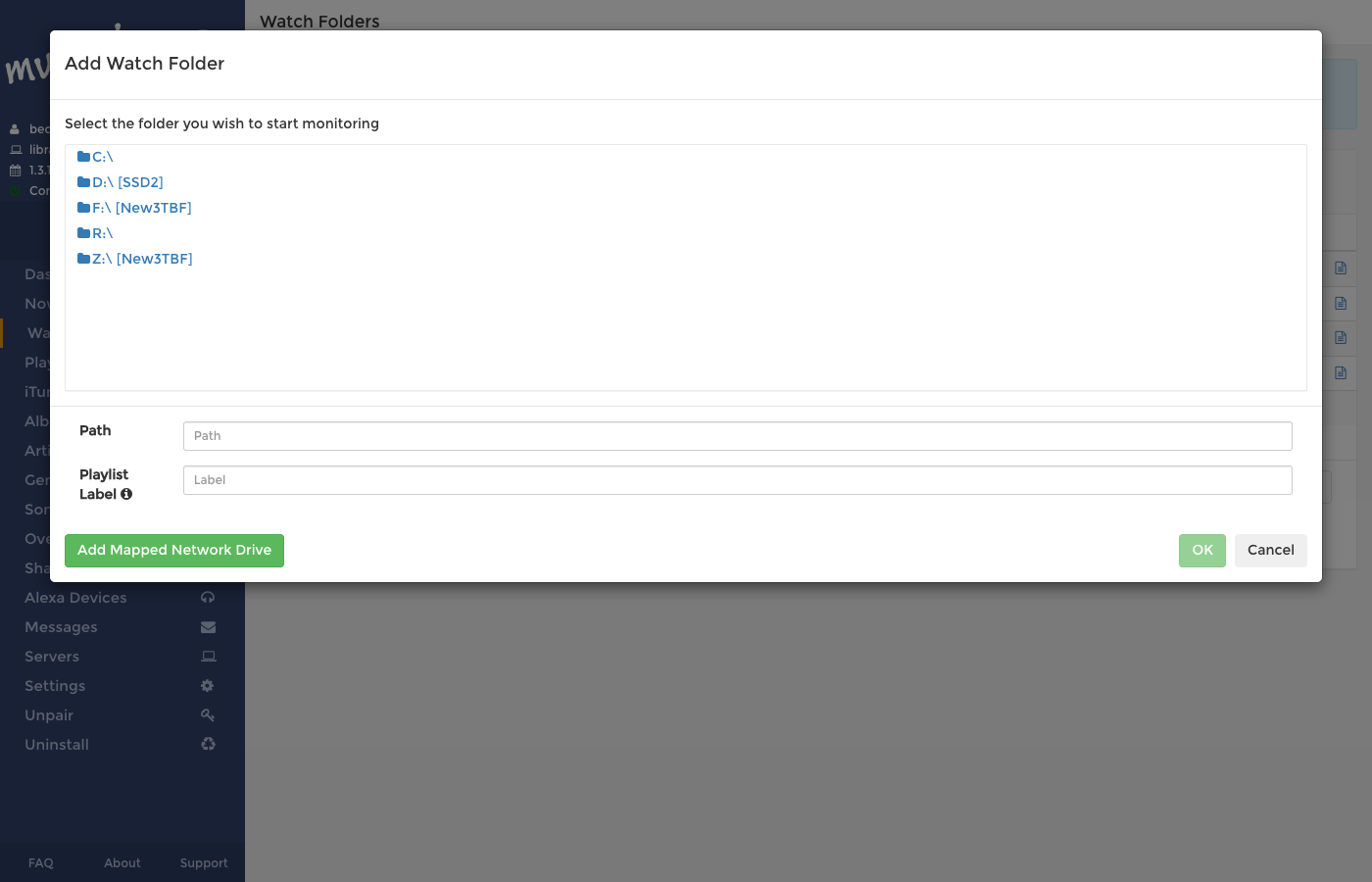
- Click Add Folder.
- In the dialog, enter the full path to your music directory (e.g.,
/musicorC:\Users\YourName\Music). - Optionally enter a Playlist Label — a friendly name such as "Jazz Collection" that you can say to Alexa to play everything in that folder.
- Click Add.
My Media will immediately begin scanning the folder in the background. Depending on the size of your library, this may take a few minutes to several hours.
Network Paths
You can add network shares (e.g., SMB/CIFS paths). On Windows, use UNC paths like \\server\share\music. On Linux/macOS, mount the network drive first and then add the mount point as a Watch Folder.
Watch Folder Status
| Status | Meaning |
|---|---|
| Idle | Folder is indexed and up-to-date, waiting for next scheduled rescan |
| Scanning | Currently scanning for new or changed files |
| Queued | Scan is queued and will start shortly |
| Error | Could not access the folder — check the path and permissions |
| Folder Not Found | The path no longer exists — the folder may have been moved or unmounted |
When a folder is scanning, the progress counter shows how many files have been processed so far (e.g., 124 / 500).
Editing a Watch Folder Label
You can rename the Playlist Label at any time:
- Click the pencil icon next to the label in the Watch Folders table.
- Type the new label and press Enter (or click the tick).
The label change takes effect immediately. Any Overrides or history entries that referenced the old label will need to be updated manually.
Triggering a Manual Rescan
Click Trigger Rescan in the Watch Folders header to immediately queue a rescan of all Watch Folders. This is useful after:
- Adding new music files
- Editing ID3/metadata tags
- Moving files within a Watch Folder
A rescan only processes changed files; it does not remove previously indexed tracks until it confirms a file is gone.
Removing a Watch Folder
Click the red trash icon ( 🗑 ) on the row to un-index a Watch Folder. This removes all tracks indexed from that folder from My Media's search index. It does not delete any actual music files.
Warning
Once removed, Alexa will no longer be able to find tracks that were in that folder until the folder is re-added and re-scanned.
Scan Logs
If logging is enabled in Settings, a log icon appears next to each Watch Folder. Click it to download the scan log, which records every file that was added, updated, or skipped during the last scan. This is useful for diagnosing why a particular track isn't appearing.
Scheduled Rescans
My Media automatically rescans all Watch Folders on a configurable schedule (default: every 24 hours). You can adjust this in Settings → Watch Folder Scanning.
Sample Media
Click Add Sample Media under the Watch Folders table to install a small set of royalty-free sample tracks. This is useful for testing your setup before importing your full library.
Using Watch Folder Labels as Playlists
If a Watch Folder has a Playlist Label, you can tell Alexa to play it by name:
"Alexa, ask My Media to play Jazz Collection"
My Media will build a temporary playlist of up to 500 randomly selected tracks from that Watch Folder and begin playing.