
Playing Playlists via Alexa Routines
Background
My Media for Alexa has always let users trigger My Media from Alexa Routines in a flexible way - either by triggering the skill to launch or by having Alexa execute a phrase/intention such as "Alexa, ask My Media to play my Epic playlist".
As of June 2026, we've introduced a new feature that allows playlists to be specified more precisely as part of Alexa routines by using Alexa Routine "Tasks".
Tasks are discrete actions an Alexa Skill can perform, such as playing a playlist for example. Instead of instructing Alexa to implement a phrase as if you're talking to Alexa, with Tasks you can specify the task name and a parameter, such as the playlist name removing any ambiguity in the Alexa LLM / AI processing.
This page provides step by step instructions on how to create an Alexa My Media Routine Task.
Is Alexa not interpreting playlist names correctly?
If you are struggling for Alexa to play your favourite playlist via the normal invocations, or if you don't want to have to invoke the My Media skill before requesting your playlist, an Alexa routine is also a fantastic way to create a 'shorthand' voice command.
For example, instead of: "Alexa, ask My Media to play my Epic playlist", you could create a routine that listens for "Alexa, play my Epic playlist' and translates this to the "Play Playlist" task of the My Media skill via a routine.
Steps
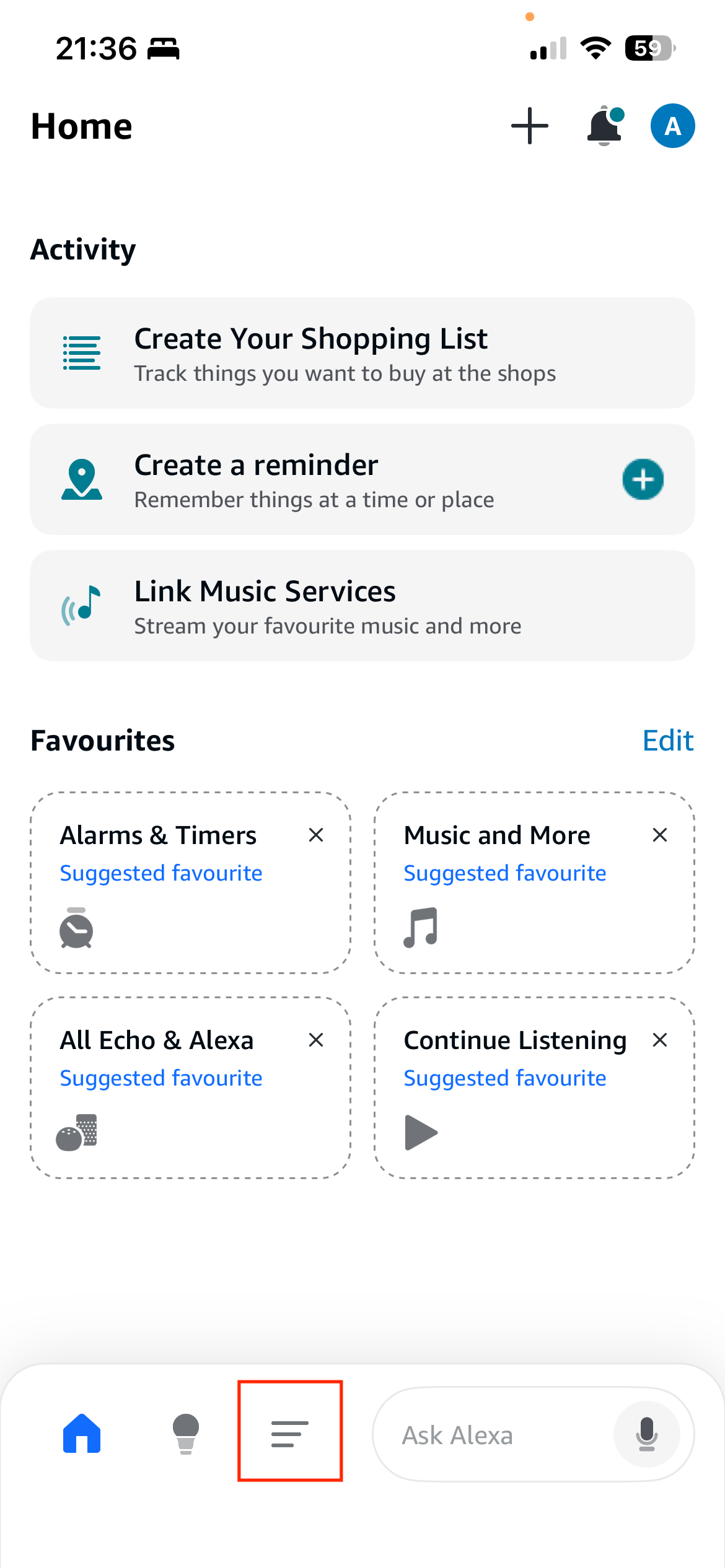
Step 1 - Open the Alexa App on your Phone
Open the Alexa App on your phone and click the 'hamburger' menu in the bottom task bar:
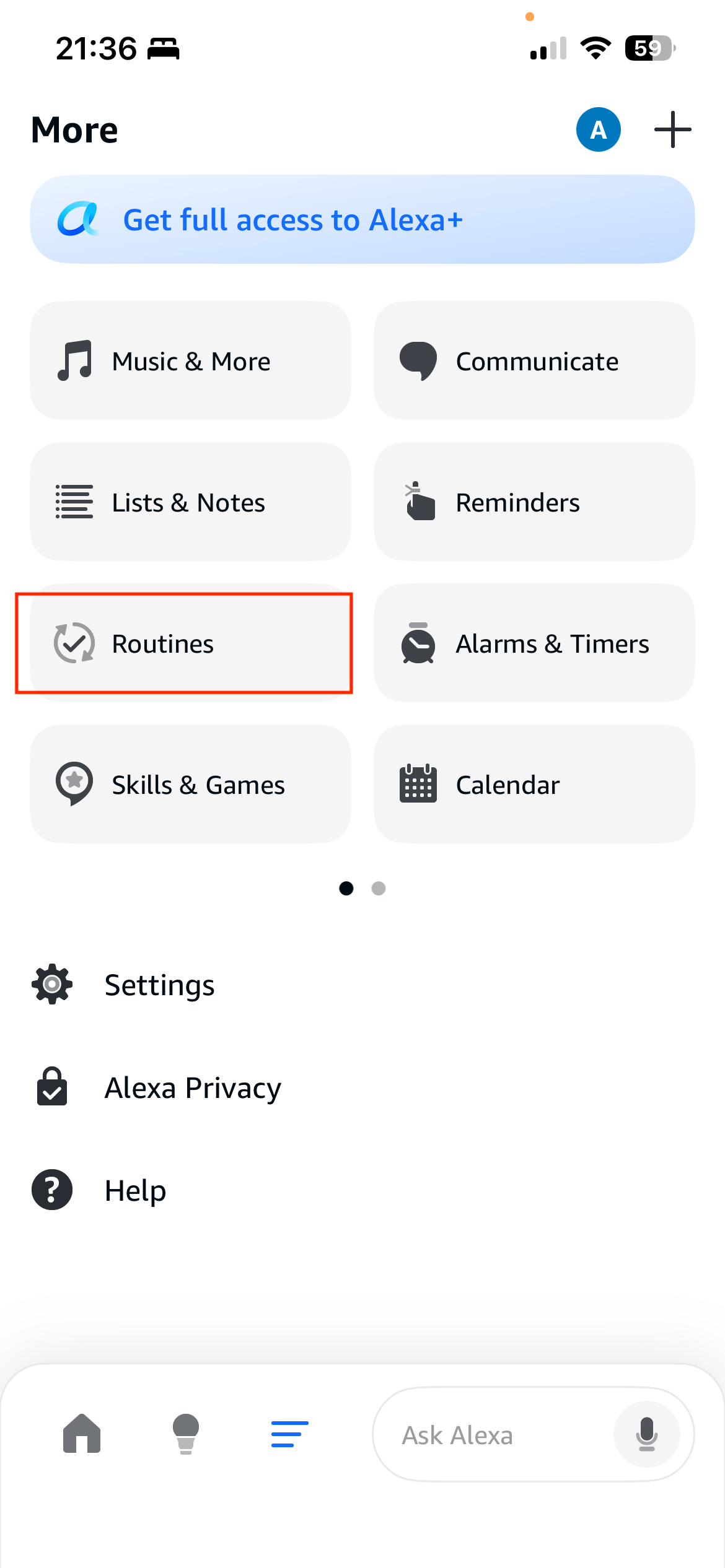
Step 2 - Tap Routines
Tap the routines button to enter the routines submenu.
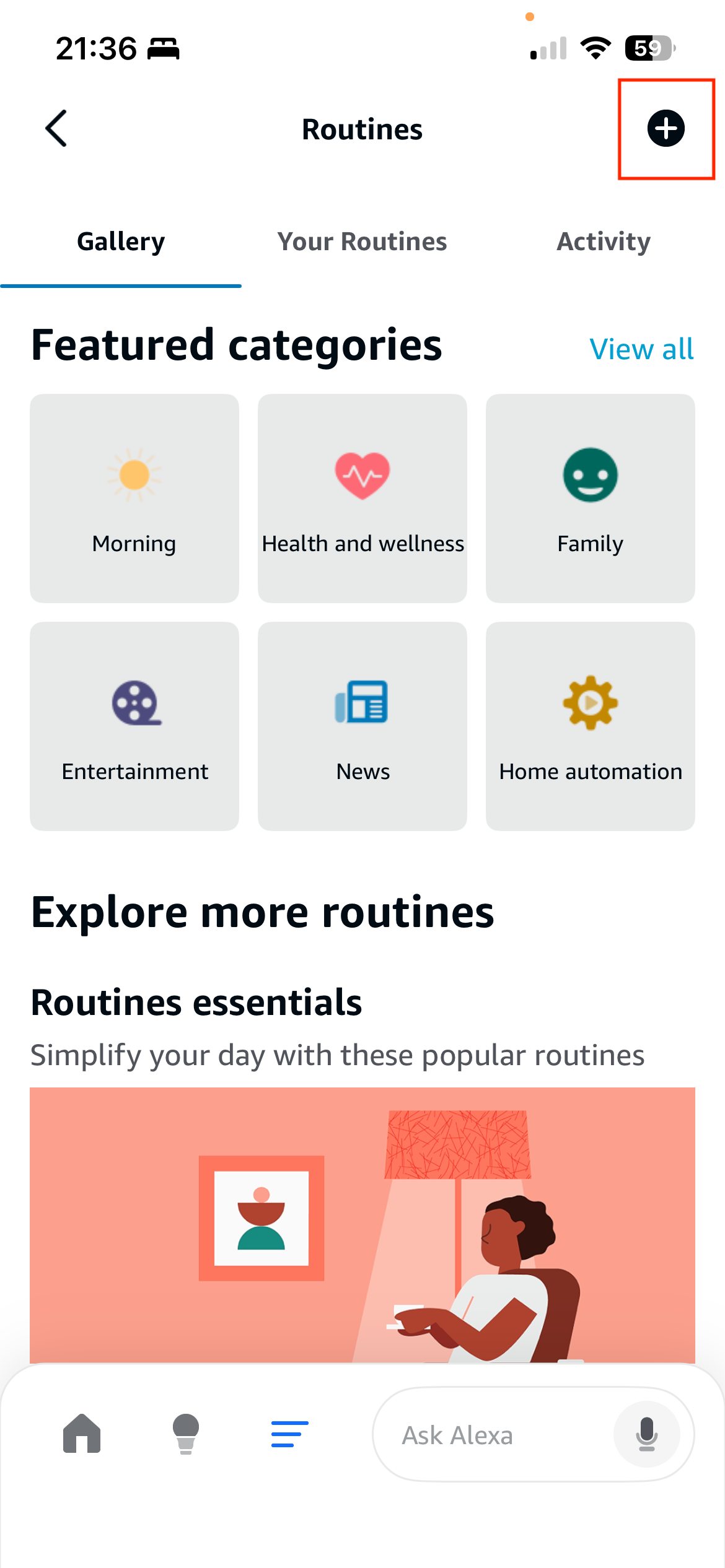
Step 3 - Add a New Routine
Press the 'Plus' button in the top right hand corner of the Routines page:
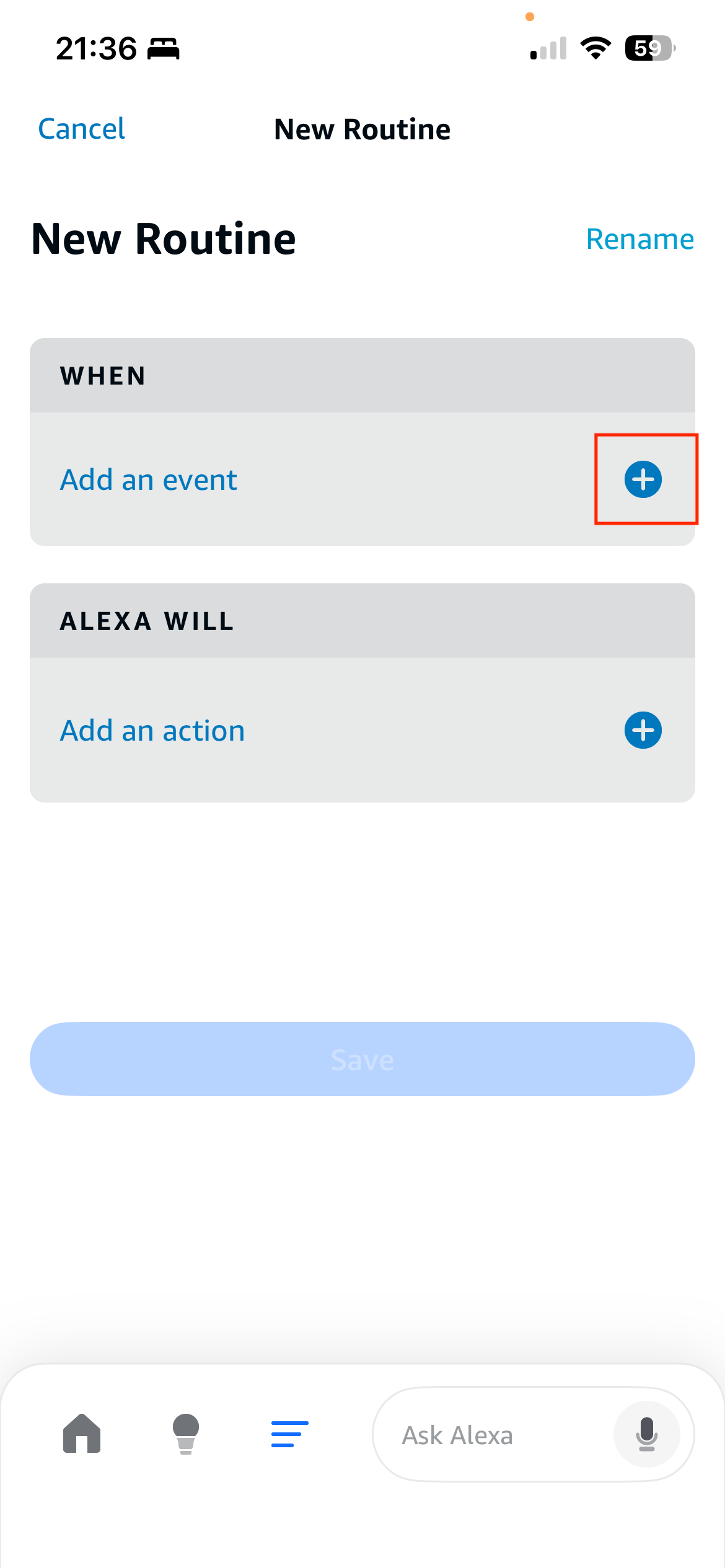
Step 4 - Add a Trigger
Tap the 'Plus' button next to the "WHEN / Add an Event" section of the page:
Step 5 - Select the Trigger Type, eg Voice
You can select any trigger type that Alexa supports. In this example we use 'Voice' so that you can use a quick phrase when instructing Alexa to trigger your favourite playlist:
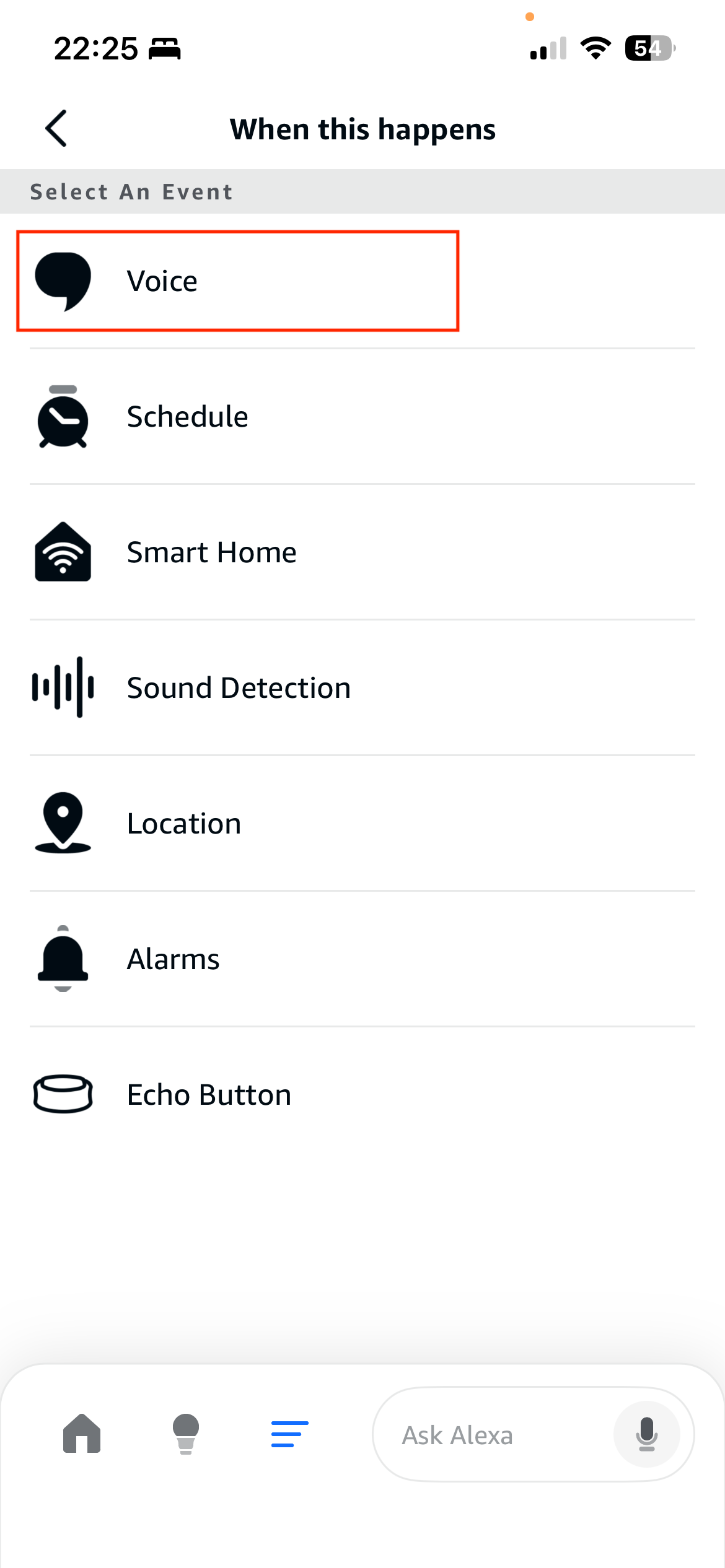
Step 6 - Enter the Trigger Phrase
For a 'Voice' trigger, enter the trigger phrase, excluding the word "Alexa", for example:
- Open my Epic playlist
But it can be anything, for example:
- Wake the house up!
- Get my groove on!
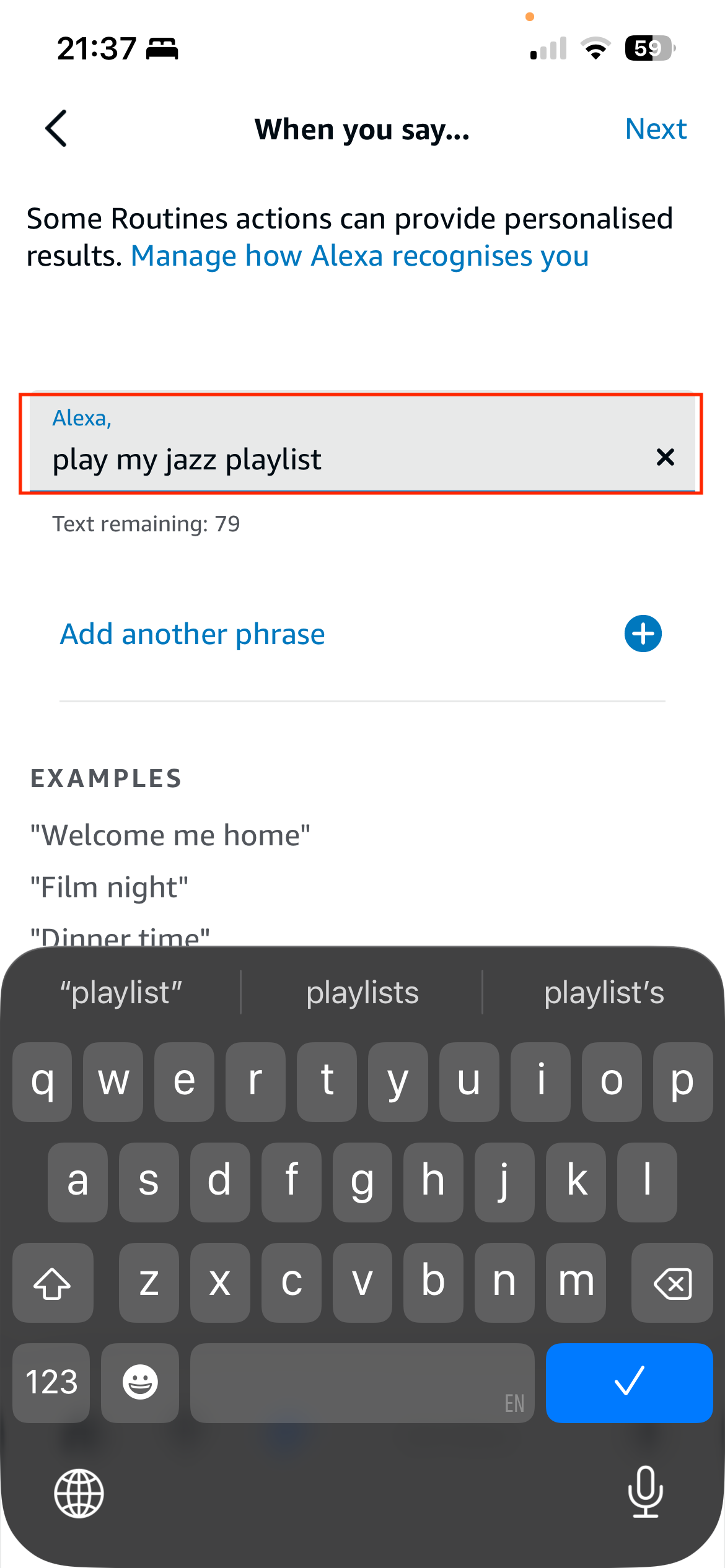
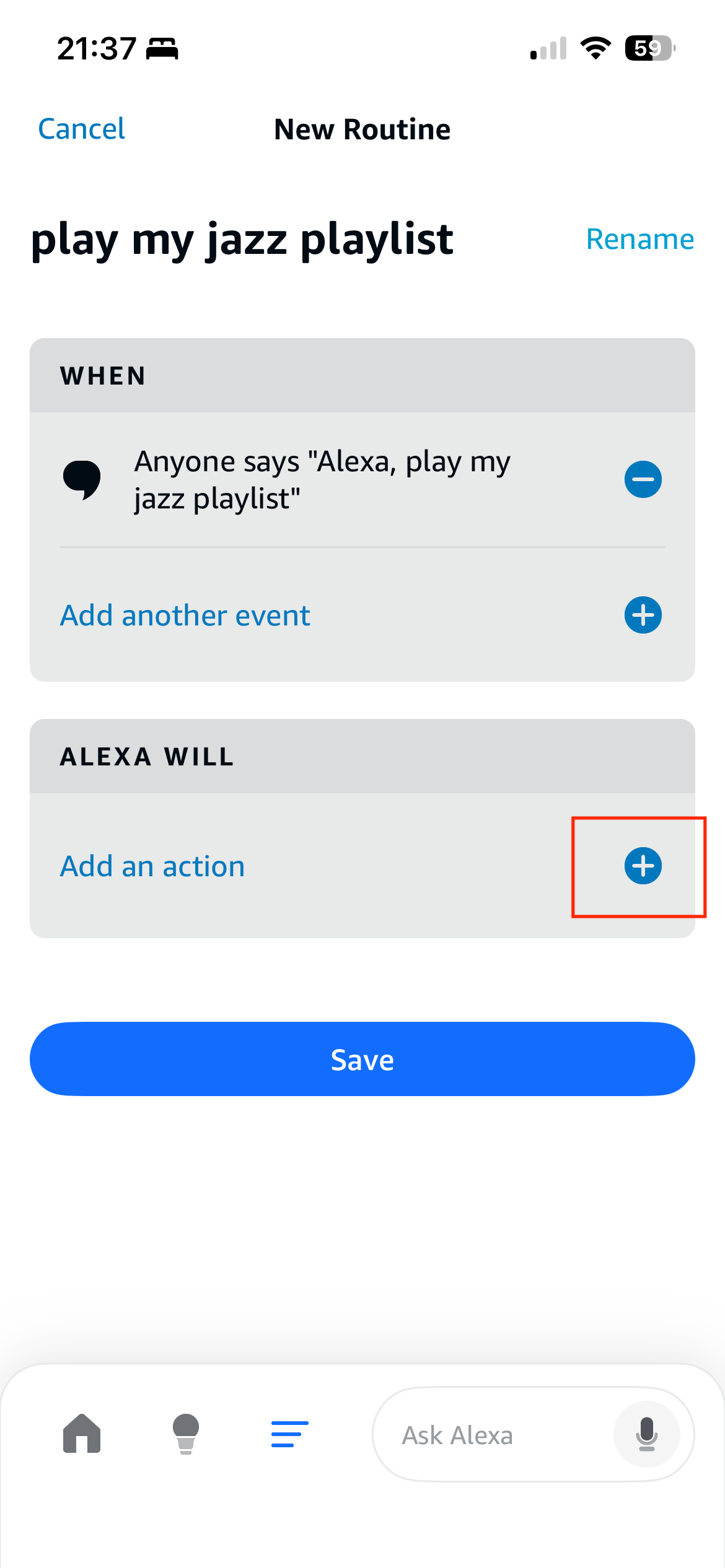
Step 7 - Add a Action
Tap the 'Plus' button next to the 'ALEXA WILL / Add an action' section of the page:
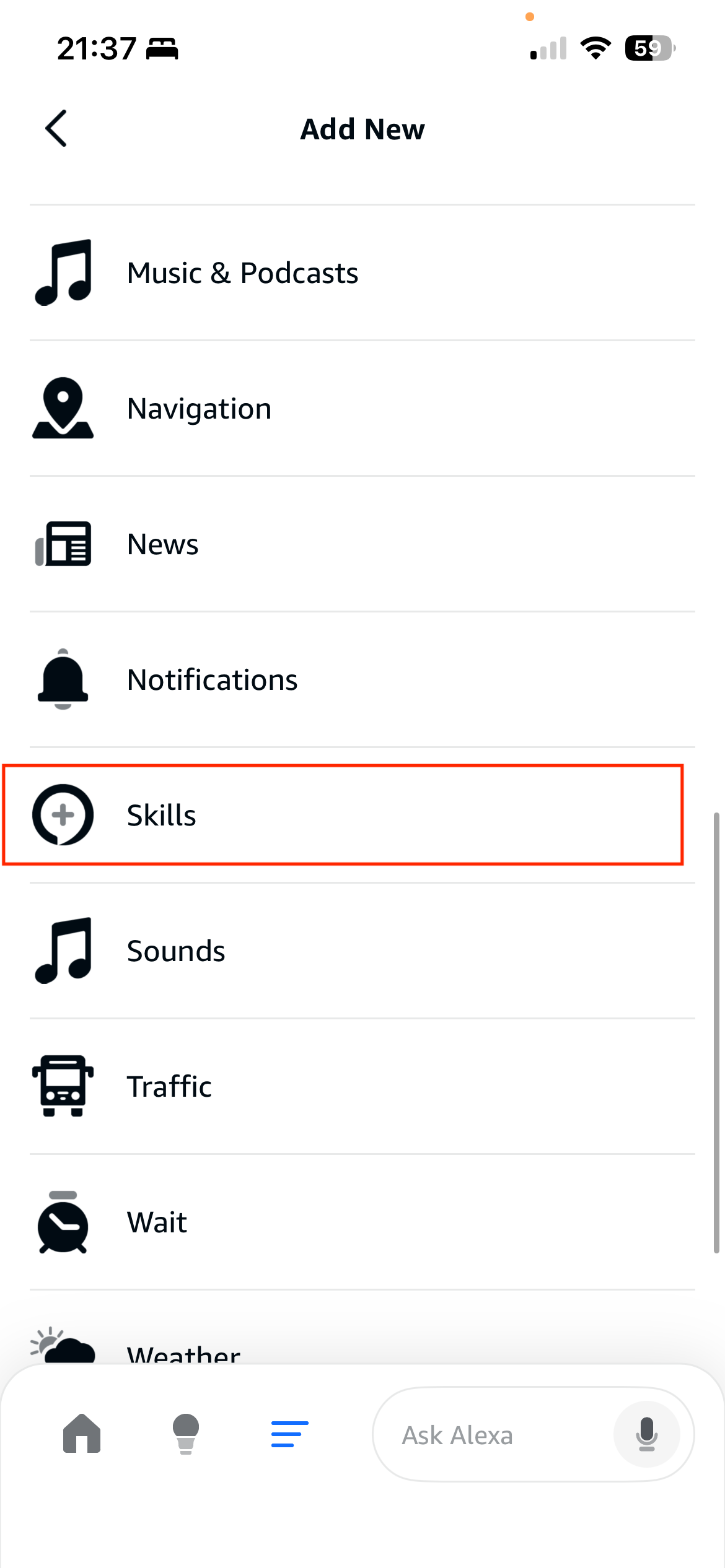
Step 8 - Choose 'Skills'
Choose 'Skills' in the list, you might need to scroll down the list to see it:
Step 9 - Choose 'Your Skills'
Choose 'Your Skills' in the list assuming you have already installed My Media for Alexa:
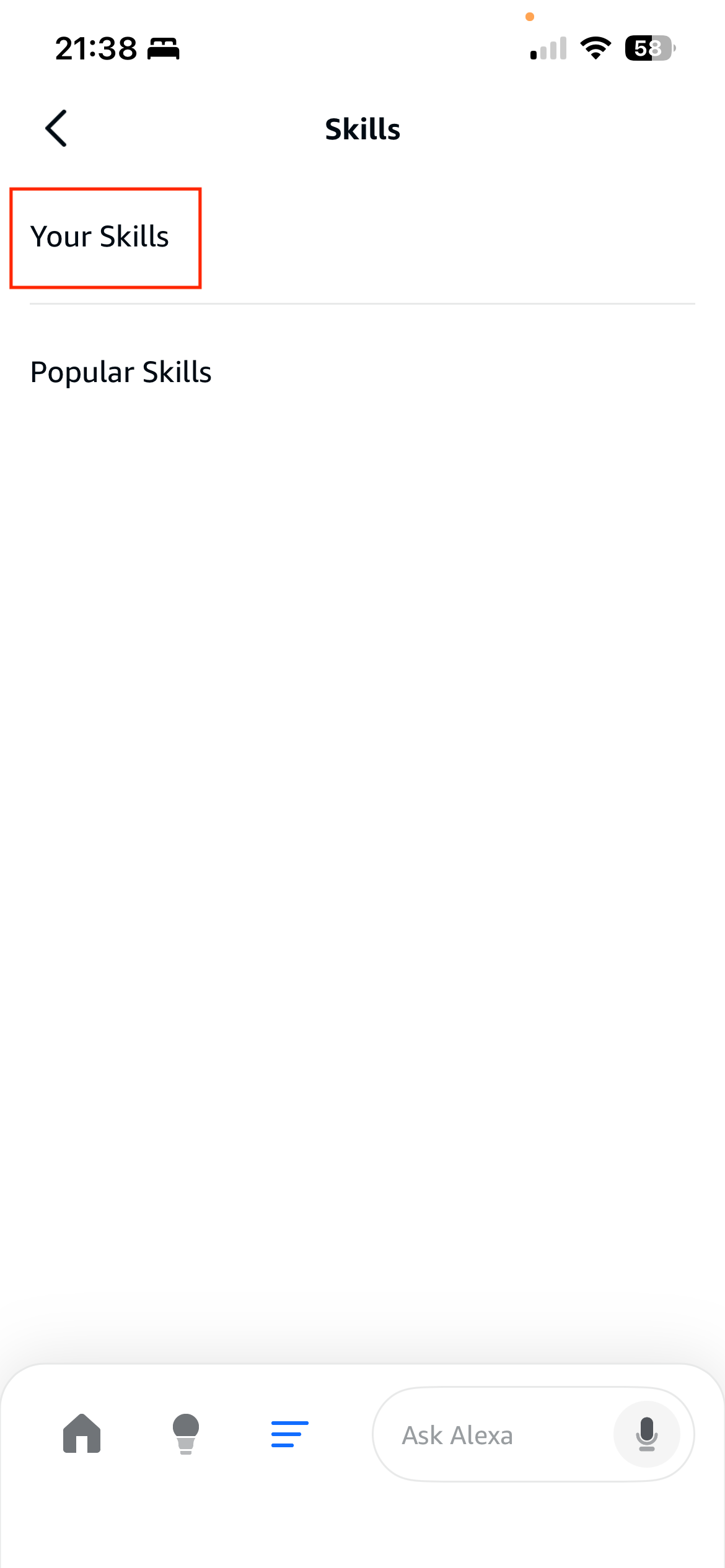
Step 10 - Choose 'My Media'
Choose 'My Media' from the list of Skills:
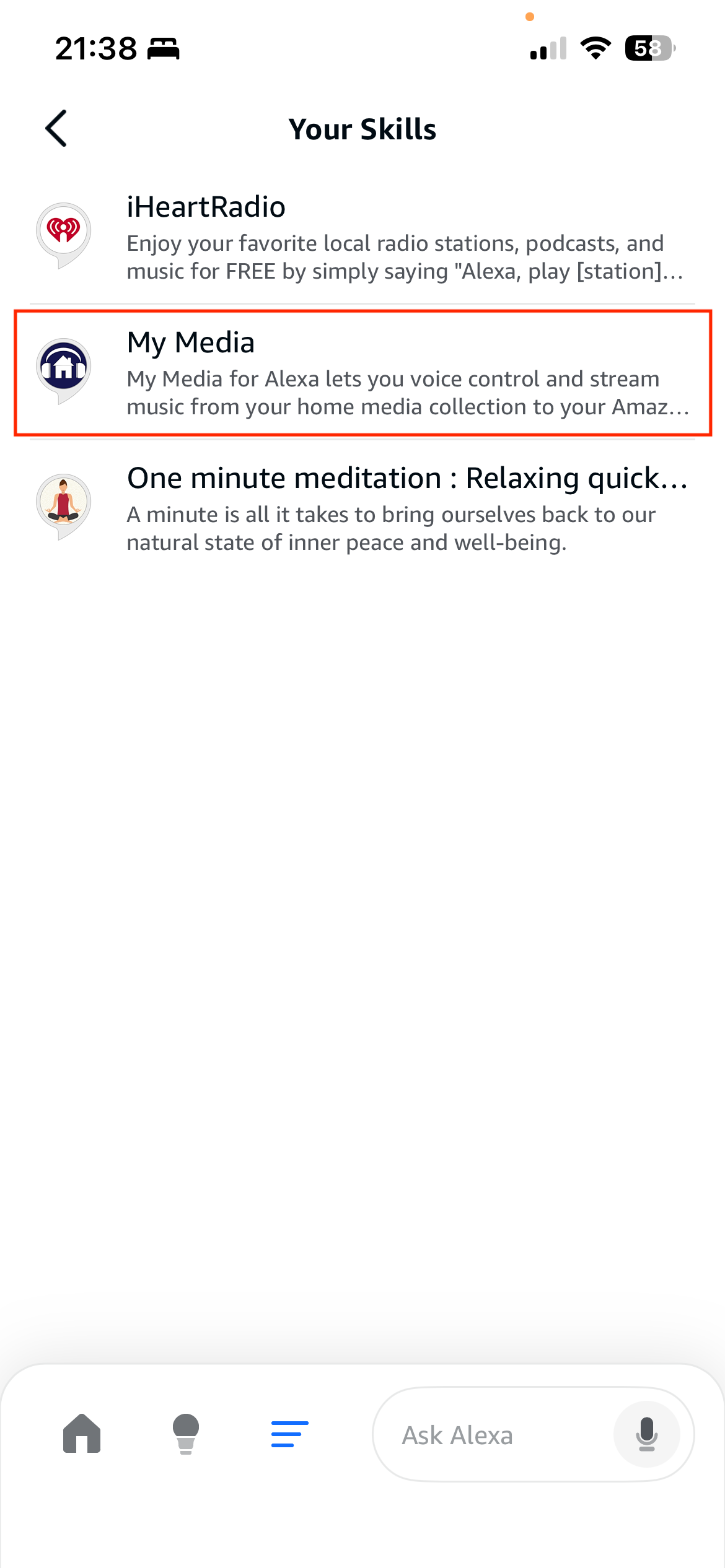
Step 11 - Choose 'Play Playlist'
From the displayed "Tasks", choose the Task you want My Media to perform, eg Play Playlist:
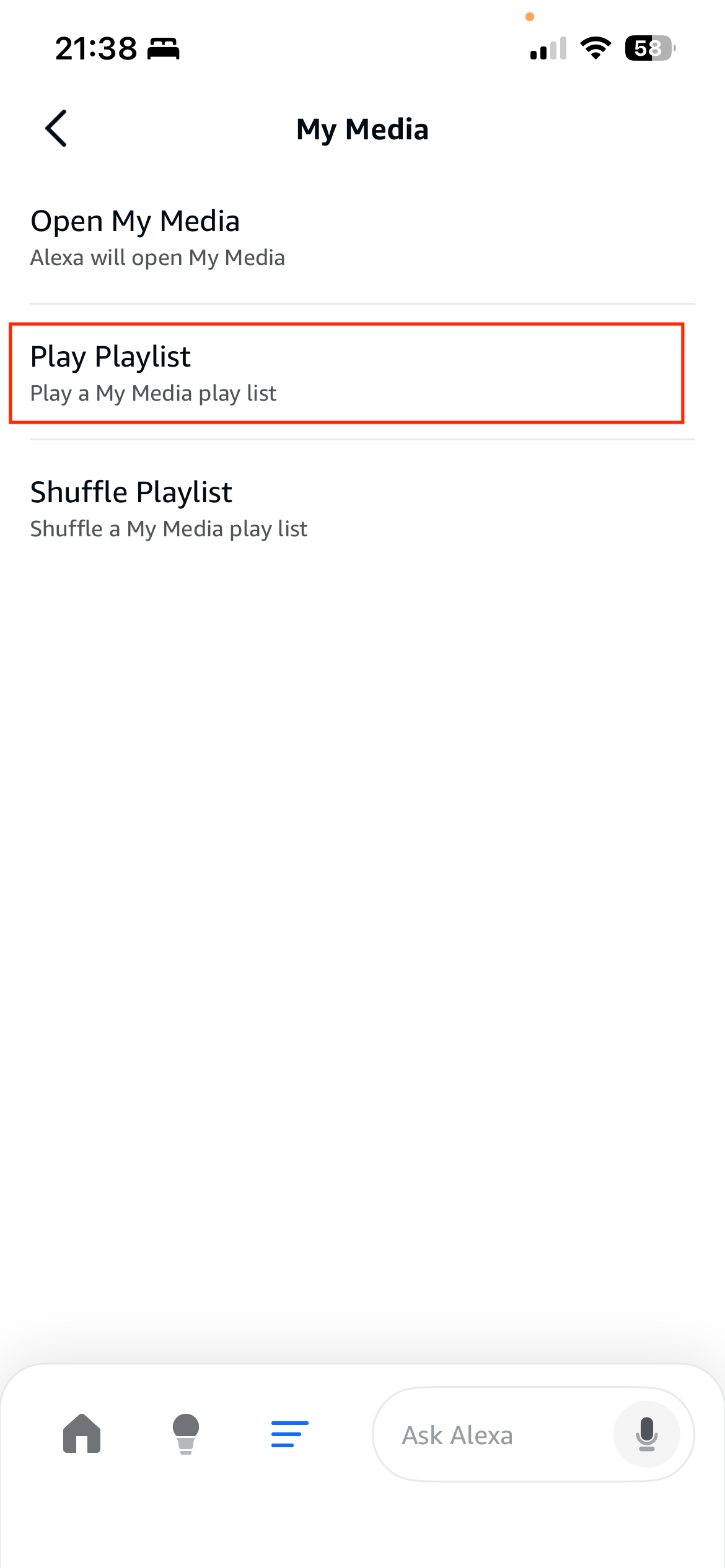
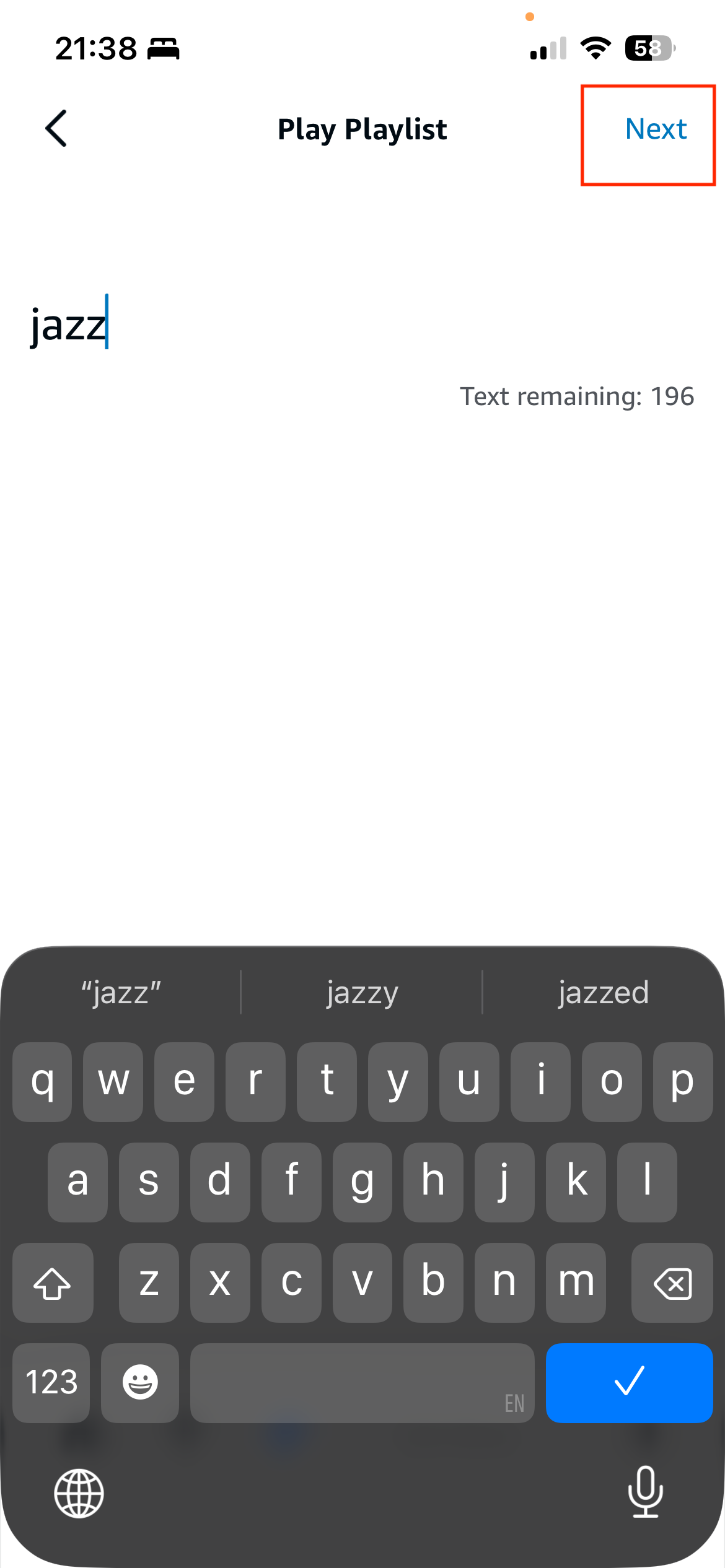
Step 12 - Enter the Playlist Name
When prompted enter the name of the playlist you want to play exactly as it appears in My Media:
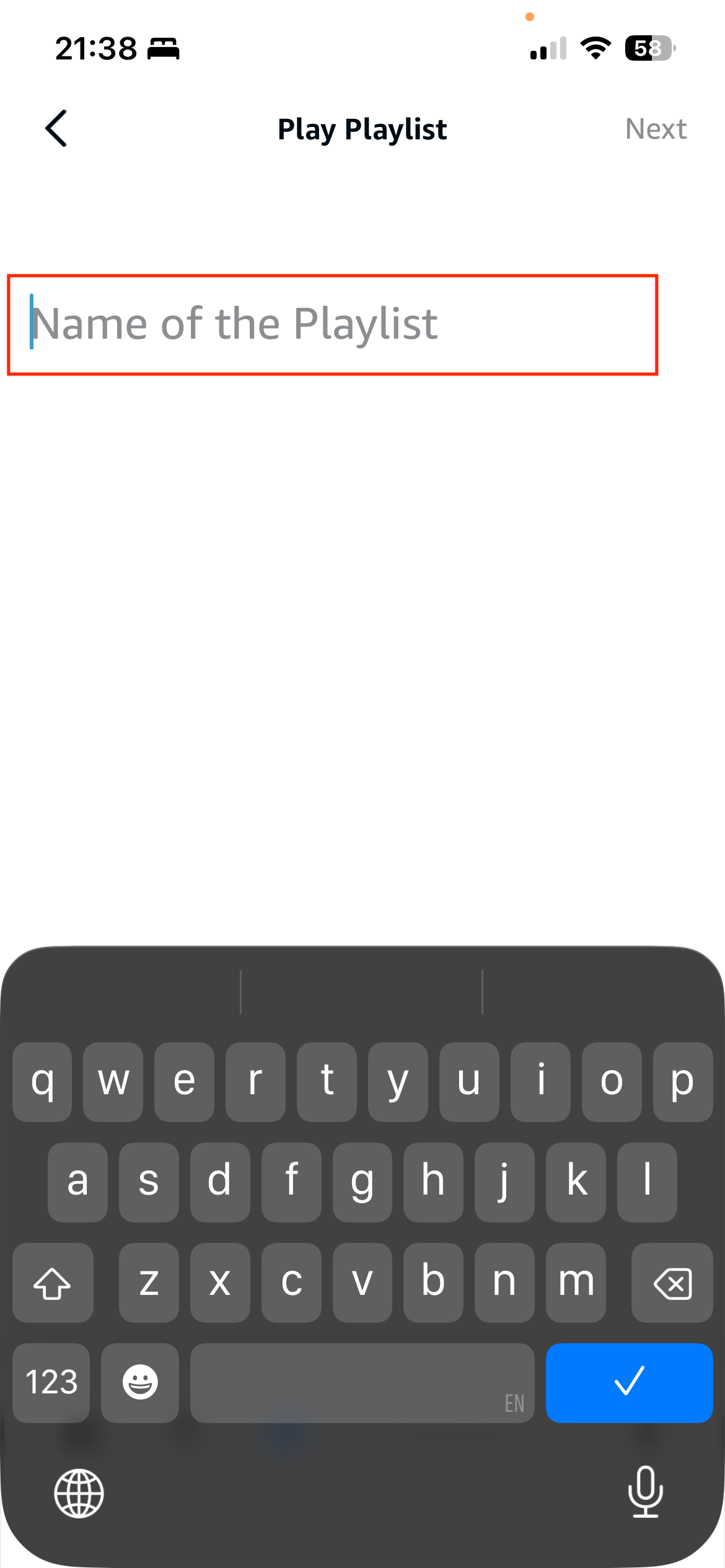
Step 13 - Press 'Nexet'
Press 'Next' to complete the setup.
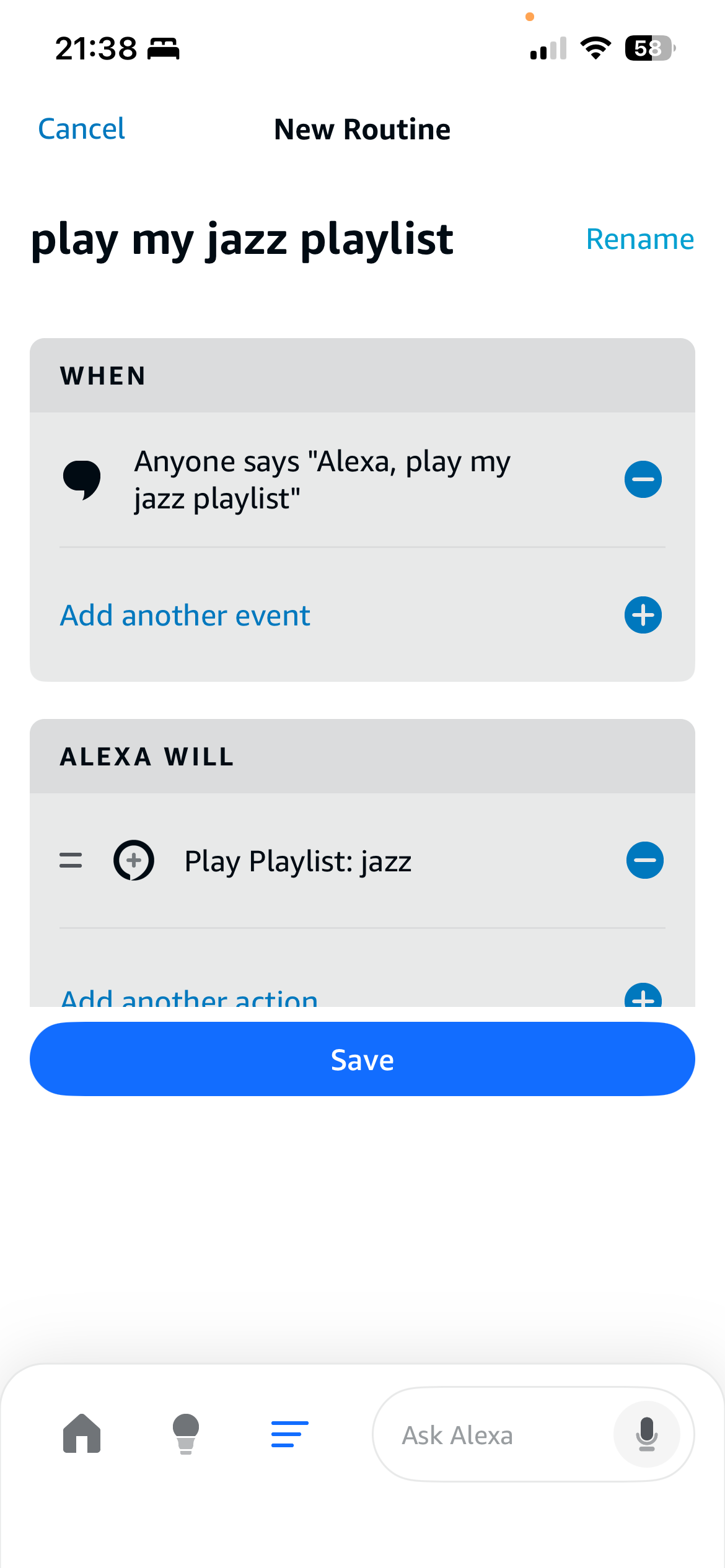
Step 14 - Save
Your routine is now complete. Press "Save" to save the new routine.
Test your new routine
After a few minutes, test your new routine by saying, for example, "Alexa, play my jazz playlist".
Need more?
If you want more flexibility in My Media Routines, please email us at our usual support email address and we will add them where feasible.